

Your helpdesk should be easy to manage, simple to scale, and reliable for both agents and contacts. The July product release here at Desk365 introduces new capabilities across admin settings, ticket management, and automation to give teams more control over how they configure and manage their helpdesk.
These updates are aimed to help support teams work more consistently while simplifying day-to-day operations. Let’s jump into what’s new.
New group signatures and unified management
Introducing group signatures, a new feature allowing admins to create dedicated signatures for individual support groups.
You can now create and manage unique signatures for specific support groups. Each group signature includes its own ‘Allow personal signature’ option.
- If enabled – If a ticket is associated with the group, a personal signature will be used when available, overriding the group signature.
- If disabled – If a ticket is associated with the group, the group signature will always be used, even if a personal signature has been created.
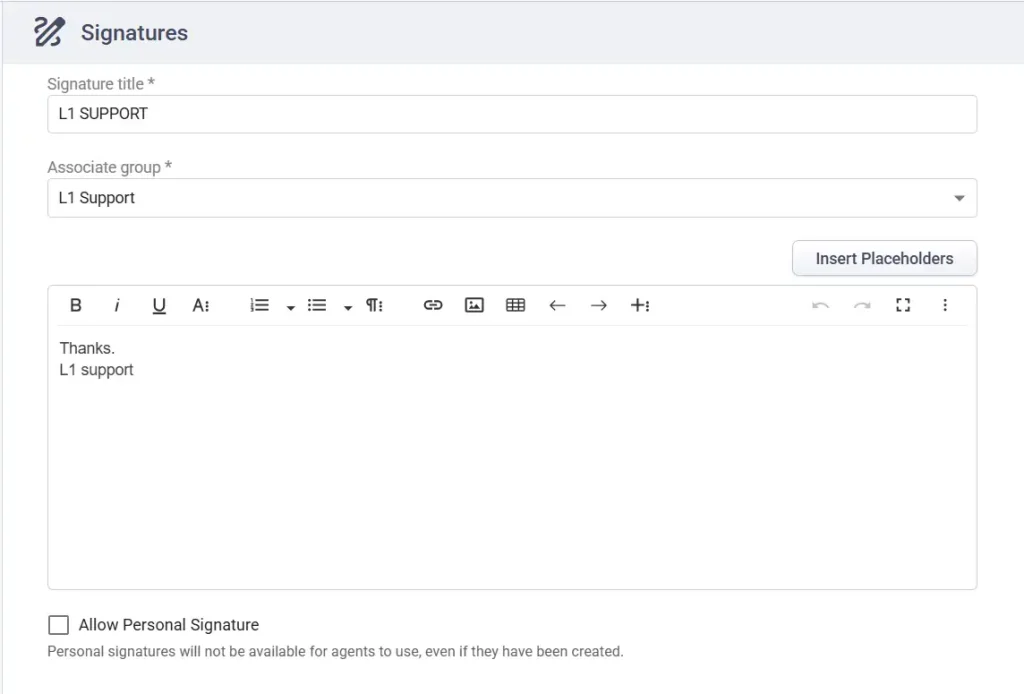
Group signatures is available exclusively on the premium plan, making it easier to create, manage, and control signatures across your helpdesk while giving admins greater flexibility over how signatures are applied.
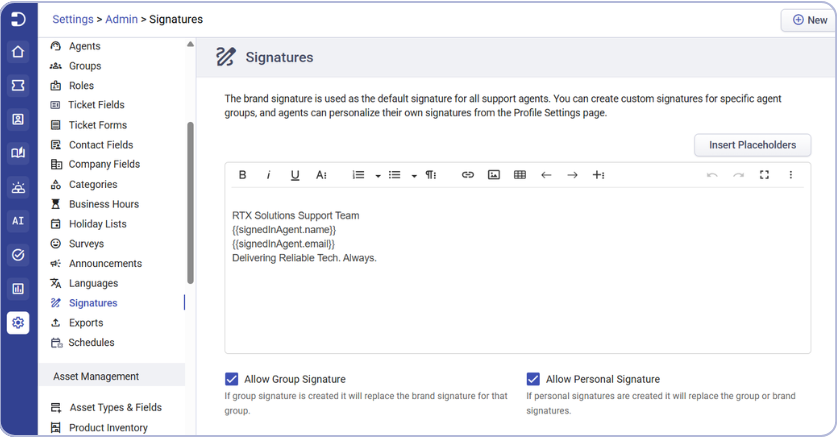
Managing signatures is now more organized across all paid plans, with a dedicated signatures section under Settings > Admin.
Previously, the brand signature was configured under helpdesk settings, while agents could only use brand and personal signatures. With this update, signature management has been moved into its own dedicated section, bringing together brand, group, and personal signature controls in one place.

The brand signature serves as the default signature for your helpdesk and now acts as the central control for signature management.
It includes two configuration options:
- Allow group signature – Enabled by default. When selected, admins can create group-specific signatures, which automatically replace the brand signature for tickets handled by that group. If disabled, group signatures remain unavailable to agents, even if they have already been created.
- Allow personal signature – Enabled by default. When selected, agents can use their own personal signatures, which take precedence over both the brand and group signatures. If disabled, personal signatures cannot be used anywhere in the helpdesk, even if they already exist.
These settings act as master controls for signature availability across the helpdesk. If either option is turned off, the corresponding signature type cannot be enabled or used elsewhere until it is turned back on.
Learn more about signature controls here.
Enhanced group management and ticket assignment
Managing groups is now easier with a redesigned Group Details page.
Previously, group details and ticket assignment settings were managed through a pop-up window. With this update, group details now opens as a dedicated page with separate overview and agents tabs, making it easier to manage group settings and members.

Before

After
The overview tab includes a new ‘Who can assign tickets to this group?’ setting, available exclusively on the premium plan, giving admins greater control over ticket assignments.
For Agents, you can choose between:
- All Agents – Allows any agent to assign tickets to the group.
- Agents from specific groups – Restricts ticket assignment to agents from selected groups.
For Contacts, you can choose between:
- All Contacts – Allows all contacts to assign tickets to the group when creating tickets through the support portal, support bot, web forms, and web widget.
- No Contacts – Prevents contacts from assigning tickets to the group.
These enhancements make it easier to manage groups while providing more control over how tickets are assigned across agent and customer channels.
Learn more about adding agents to the correct group.
Expanded ticket sorting with custom fields
In addition to the existing system fields and standard fields sections in the Sort By menu, we’ve introduced a new custom fields section to give you more flexibility when organising tickets.

You can now sort tickets using eligible custom ticket fields, making it easier to organize your ticket list based on business-specific information stored in your helpdesk. Custom field sorting is supported for the following field types:
- Text
- Number
- Decimal
- Date
Select any supported custom field to organise tickets based on the values stored in that field.
Here’s a quick recap of the other available sorting options:
- System fields, sort tickets based on their intended use case and underlying field values, such as chronological, priority-based, or workflow-specific sorting.
- Standard fields, sort tickets alphabetically (or by their respective field values) using commonly used ticket attributes.
Learn how to search and sort helpdesk tickets here.
Exact match operators for automation rules
We’ve introduced two new operators, viz. Contains (Exact) and Does not contain (Exact) to help you build more precise automation rules for subject, description, custom text, and custom paragraph fields.
In addition to the existing contains and does not contain operators, these new options match complete words or phrases instead of partial text, helping eliminate unintended matches.
- Contains (Exact) matches only when the searched word or phrase appears as a complete word or complete phrase. For example, if the field value is “Payment failed”, searching for “payment” returns a match, while searching for “pay” does not.
- Does Not Contain (Exact) matches only when the searched word or phrase is not present as a complete word or complete phrase. For example, if the field value is “Payment failed”, searching for “pay” returns a match because it is only a partial word, while searching for “payment” does not.

These operators help you create more accurate automation rules by ensuring actions are triggered only when the exact words or phrases you’re looking for are present.
Learn more about configuring automation rules in Desk365 here.
Business hours support for time-based triggers
Time-based automation rules are now more flexible with support for business hours in addition to all hours.
When creating or editing a time-based trigger, you can now choose how the elapsed time for a rule is calculated:
- All Hours (24 hrs × 7 days) – Calculates elapsed time continuously, regardless of business hours.
- Business Hours – Calculates elapsed time based on the business hours configured for the ticket’s assigned group. If no group is assigned, the standard helpdesk hours are used.

This enhancement gives you greater control over time-based automations, allowing rules to align with your team’s working hours for more accurate SLA tracking, notifications, and automated actions.
Learn more about configuring automation rules to run on time-based triggers.
And that’s everything in this release! Whether you’re organising signatures with greater flexibility, controlling how tickets are assigned across groups, sorting tickets using custom fields, building more precise automation rules, or configuring time-based triggers around business hours, these enhancements are designed to help your team manage support more efficiently.
If you’re already using Desk365, log in and start exploring these new features today.
If you’re new to Desk365, start your free 21-day trial and see how helpdesk and ITSM can work together on a single platform.