

Release week here at Desk365, and that means more features, enhancements, and improvements coming your way. This release specifically is structured to help agents: control where customers reach you, have more control over automations, access AI usage and conversations better, and manage assets and contacts without adding complexity.
Here’s all the details of what’s launched.
Control which channels customers can raise tickets on
Support doesn’t have to be everywhere all the time.
Introducing Channel Controls. You can now decide exactly which channels are available to your users, from one place.
Instead of managing Email, Microsoft Teams, Support Portal, Web Forms, and Widget separately, you can:
- Enable only the channels you want
- Disable the ones you don’t need
- Adapt your support setup as your workflow evolves
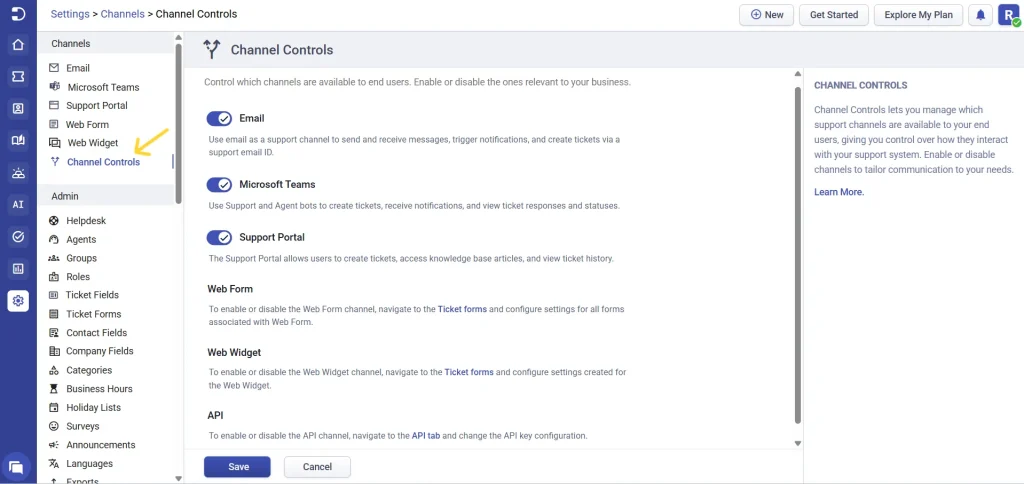
When a channel is disabled, it’s not just hidden, it’s completely unavailable:
- Emails sent to a disabled support email will bounce back
- In Microsoft Teams, users see a bot notification saying the channel is unavailable
- On the Support Portal, users see a message that it’s inactive
- Web Forms and Widgets stop accepting submissions

This helps avoid confusion, duplicate tickets, and scattered conversations.
Channel Controls is also role-based, so you can decide who gets to manage these settings. By default, only admins can access it, but you can extend this to other roles if needed.
There are also a couple of smart safeguards:
- If you’ve configured custom/secondary emails, the Email channel can’t be disabled
- Web Widget ticket form can now be disabled when needed
Overall, this gives you a much cleaner way to control how support tickets flows into your system.
Learn more about channel controls.
Seach and sort assets
This week’s updates make asset management smoother especially if you’re dealing with large inventories.
1. Faster navigation with search and sort
Across both Product Inventory and Vendors, you can now:
- Search instantly
- Sort lists based on key fields
This makes it much easier to locate specific items without scrolling through long lists.

2. Better context inside assets
When you open an asset, you’ll now notice a smoother experience. Product and vendor details are visible directly within the asset. Clicking them opens a quick overview panel instead of taking you away immediately.

This lets you:
- Check details at a quick glance
- Stay within your workflow
- Navigate deeper only when needed
If you want full details, you can still open the complete properties page.
Note: Access to full settings pages depends on role permissions.
3. Import software in bulk
Software tracking is now easier at scale. You can import software directly from the Assets > Software list using a CSV file:
- Download a sample file
- Add your software data
- Upload and import in bulk

What’s important is how duplicates are handled:
- Software Name is the unique identifier
- If a match is found, the existing record is updated
- No duplicate entries are created
This is slightly different from assets, where the asset tag is the unique identifier
It’s a small distinction, but it ensures your data stays clean and consistent.
Clearer visibility into AI usage and a cleaner chatbot experience
We’ve made a few improvements to give you more clarity into how your AI is being used, along with a smoother chatbot experience.
1. More context in Credits & Usage
You’ll now see the contact email of the user who initiated the chat in the Credits & Usage section. Along with existing details like conversation history, credits consumed, and the AI agent involved, this makes it easier to:
- Identify who is interacting with your chatbot
- Track usage at a more granular level
- Understand how AI is being used across your support workflows

2. Refreshed chatbot experience
The chatbot interface has been updated to feel more streamlined and easier to navigate, especially during longer conversations. The overall layout is cleaner, helping users focus on the interaction without unnecessary clutter.
One of the key improvements is the ability to expand the chat window, giving users more space to read and respond, particularly useful when conversations get more detailed.
In addition, the header section has been refined with clearer, more intuitive controls for actions like viewing the profile, expanding or collapsing the chat, and closing the window. This makes navigation smoother and the overall experience more user-friendly.
You can also enable a dark mode experience for the web widget by setting the dark-mode condition to true in the widget configuration.

Added precision controls within Automations
Automation is one of those things that works best when it quietly does everything right in the background. This update makes it smarter in two ways.
1. Keep everyone in the loop with CC inclusion
When using ‘Send Email’ in automation rules, you can now include all CC recipients added during ticket creation.

This means, even if you send the email to a different primary recipient, everyone originally CC’d stay included automatically and there is no need to manually re-add stakeholders.
2. More flexible conditions with multi-level fields
Multi-level fields were already available in automation rules, but you can now add multiple conditions within the multi-level field set, giving you more flexibility while defining rules.
Earlier, once multi-level fields were added to a rule, you could only work with a fixed condition structure. While you had the option to remove conditions, you couldn’t add additional ones within the same multi-level set.
Now, you can:
- Add multiple conditions within the multi-level field section
- Define several combinations under the same rule
- Avoid creating separate rules for similar scenarios

This makes it much easier to handle complex, layered conditions without duplicating effort.
3. Updated automation summary view
The automation summary UI has been improved to reflect these changes more clearly. Multiple conditions within multi-level fields are now displayed in a more structured format, making it easier to review and understand how your rule is configured.
This improvement isn’t limited to multi-level fields, it applies across the entire summary view. Whether you’re working with simple or complex conditions, you’ll find it easier to understand the logic behind each rule and make changes with confidence.


Better filtering, smarter search, cleaner UI for Contacts
1. Advanced filtering
Managing contacts is now far more flexible, especially when you’re dealing with large datasets. You can filter contacts using multiple criteria like created time, company, department, support portal access, and Entra ID sync status. The filtering system also supports checkbox fields, dropdown fields, and custom date fields. You can apply filters individually or combine them to create highly specific views, making it easier to segment and manage contacts efficiently.

2. Customizable search settings
Search is now more powerful and adaptable to how you work. You can choose which fields to include in your search, such as name, email, phone number, company, department, custom fields, and even attachment names. This makes it easy to switch between quick lookups and more detailed, broad searches. Searching across custom fields, departments, and attachments is available on the Premium plan.

3. Cleaner UI with Actions menu
Import and export options are now neatly grouped under a single Actions menu. While it’s a small UI update, it helps reduce clutter, keeps bulk actions organized in one place, and makes navigation more intuitive overall.

More flexibility with “From” addresses in Email
If you manage multiple support email addresses, handling replies just got easier. You can now set a default “From” address and associate it with specific groups. This means that when agents reply to tickets, the correct email address is automatically selected based on the group, saving time and reducing the chances of sending from the wrong address. Agents still have the option to change it when needed.
You can use one group’s email as the default for another group and configure multiple fallback combinations. This added flexibility ensures that emails are always sent from the most appropriate address, even in more complex support setups.
To make use of this functionality, your custom support email addresses need to be configured within the system. Once set up, you can map them to groups and start leveraging these flexible “From” address settings.

Thai language support in the Agent Portal
A small but important addition. Thai language support is now available in the Agent Portal, making it easier for teams to work in their preferred language.

This release focuses on strengthening the foundation of your support operations. With improvements across automation, asset management, search, email workflows, and AI insights, your team gets a more connected and efficient system to work with.
There’s more in the pipeline, and we’ll keep building to make your support experience even better. Stay tuned.