
We’re thrilled to introduce a major upgrade, we’ve just launched Microsoft Intune integration in Desk365! You can now directly sync all your assets with exact field mapping from Intune to your Desk365 helpdesk.
If your organization uses Microsoft Intune to manage laptops, desktops, or mobile devices, you can now bring those devices into Desk365 Asset Management. This makes it easier to keep your device information together with the tickets, users, and other IT assets your team already manages in Desk365.
Keep your Microsoft Intune device information in one place
Managing devices often means jumping between different tools to find the information you need. With the new Microsoft Intune integration in Desk365, you can sync your Intune-managed devices directly into Desk365 instead.
Once connected, your devices can be added to Desk365 Asset Management, giving your team a central place to view and manage them.
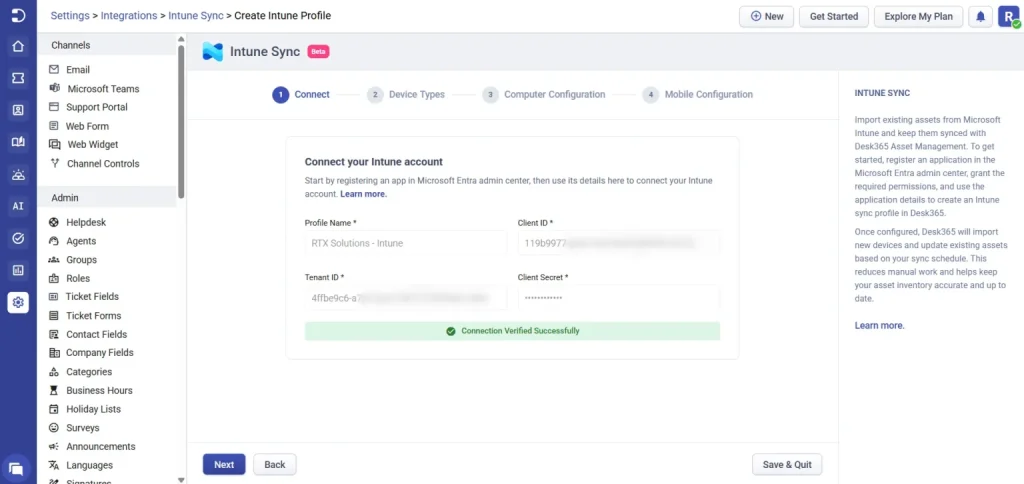
You can also map Intune device information to the asset fields in Desk365 and choose which devices you want to sync.

This can save your team from manually adding device details and make it easier to keep your asset records up to date.
Built to make asset management easier
The Intune integration is especially useful for IT teams that already use Microsoft Intune as part of their device management workflow. Instead of maintaining device information separately, you can bring that information into the same helpdesk where your team handles IT requests and manages assets.

Whether you’re looking to get better visibility into your company devices or simply reduce manual asset updates, this integration gives you a more connected way to manage your IT environment.
Desk365 fits perfectly in to the Microsoft ecosystem
Desk365 is more than just a helpdesk, it integrates with Microsoft Teams and becomes a natural part of the Microsoft environment your teams already work in.
With the Desk365 Support Bot for Microsoft Teams, employees and contacts can create tickets, check ticket status, reply to requests, and receive ticket updates without leaving Teams. You can also customize ticket forms and allow contacts to add attachments, making it easier for them to provide the right information from the start.
For support teams, the Desk365 Agent Bot brings ticket management into Teams too. Agents can view their open and pending tickets, check unassigned tickets, reply to contacts, add notes and attachments, update ticket properties, and receive notifications when tickets are assigned or updated. This makes it easier for agents to stay on top of support requests while working in the Microsoft Teams environment they already use every day.
Desk365 also connects with Microsoft Entra ID to help keep user information in sync, while our Microsoft Intune integration lets you sync Intune-managed devices directly into Desk365 Asset Management, with flexible field mapping to keep your asset information organized.
AI Copilot helps agents work faster with tasks such as summarizing tickets, generating knowledge base articles, and drafting responses. And we’re taking this Microsoft-first experience even further.
AI Agent for Microsoft Teams is coming soon, bringing AI-powered self-service directly into Teams. Users will be able to get answers from your Knowledge Base, create support tickets using existing forms, and receive ticket updates without switching between applications.

Get started with Microsoft Intune integration in Desk365
Already using Desk365? You can get started by following our Microsoft Intune integration guide.
Before setting up the integration, you’ll need to register an application in Microsoft Entra ID and provide the required permissions. Our Microsoft Entra ID setup guide walks you through the process step by step.
New to Desk365? Now is a great time to explore how Desk365 brings ticketing, asset management, and IT support together in one place. Start your 21-day free trial now.