
Your contacts get answers faster. Your agents get more control over what they print, filter, and export. And your admins get a clearer record of what changed and who changed it. That is what this release is about.
But the biggest news, the Desk365 AI Agent for Microsoft Teams, is live! The AI Agent that answers employee questions around the clock is now available to be deployed inside Microsoft Teams.
We’ve also added ticket forms to the AI Agent, audit logs for automations, bulk ticket printing, new contact permissions, a ‘Resolved By’ filter, safer exports, and a new API endpoint for ticket activities.
Let’s get into what’s new in detail.
Introducing the Desk365 AI Agent for Microsoft Teams
Your end-users already spend their day in Microsoft Teams. Now your helpdesk can meet them there with answers, not just tickets. The Desk365 AI Agent for Microsoft Teams is a buildable AI support agent that works 24/7. End-users type a question the way they would ask a colleague, and the AI Agent search your Knowledge Base or any documents you train it on, and reply with an answer based on the training content. When it can’t resolve the issue, the AI Agent asks a few follow-up questions and drafts a support ticket. The end-user reviews it before it‘s submitted. After that, updates arrive in the same conversation. End-users see when an agent replies, when the status changes, and when the ticket is assigned. They can also respond to approval requests and satisfaction surveys without leaving Teams.
You stay in control of who uses it. Add your email domains under Teams AI Agent Allowed Domains in Settings > Admin > Helpdesk Settings, and only contacts with matching email addresses can chat with it. You can also set the name, description, icons, and accent color so the AI Agent feels like your brand. Setup takes four steps, and you don’t need to upload a separate app package.
The AI Agent for Microsoft Teams is available on the Plus and Premium plans. For the full story, read our detailed launch blog: Introducing Desk365 AI Agents for Microsoft Teams.
Ticket Forms for AI Agents
Until now, the AI Agent suggested a subject and a description, and a ticket was created once the end-user said yes. Now, you can use ticket forms with it.
You’ll find a new section for AI Agent ticket forms under Settings > Admin > Ticket Forms. Create forms for each deployment channel, including the Support Portal, Chat Widget, and Microsoft Teams. They work just like the ticket forms you already use. Each channel has a default form, and you can create as many more as you need.

If you have several custom ticket forms, the AI Agent picks the best match based on the name and description you gave each form. The end-user can switch to a different form if it doesn’t fit.
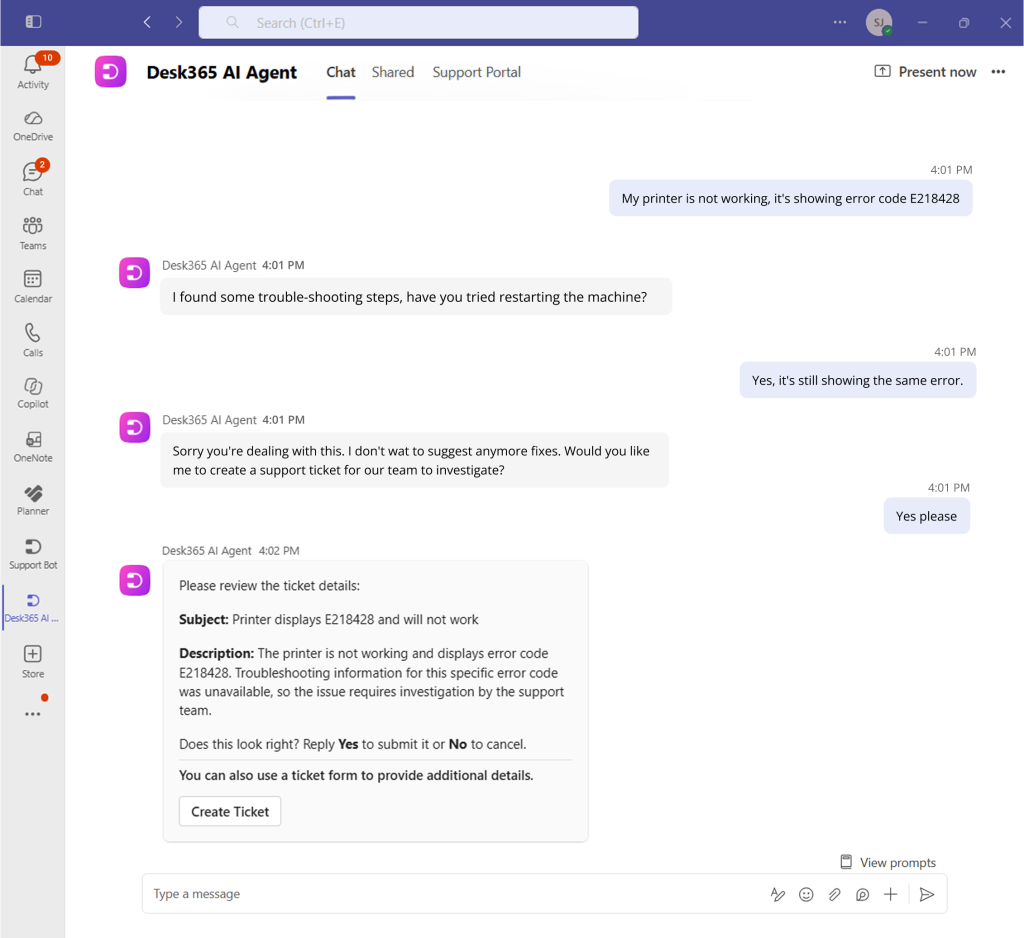
The subject and description are filled in automatically, and once the ticket is created, your agents see it in the Agent Portal. The source shows as Support Portal (AI Agent), or the matching channel, with the form name next to it.

These forms are also available when you build automations, reports, and filters.
Audit Logs now cover Automations and API actions
Automations do a lot of work behind the scenes. So, when one changes, you want to know who changed it and when. Any action on an automation rule is now recorded in Audit Logs. That includes creating, updating, activating, deactivating, cloning, and deleting a rule. Each entry also covers the rule’s conditions and actions, so you can see exactly what changed. This applies to automation rules for ticket creation, ticket updates, time-based triggers, and round robin triggers.
You’ll find these entries in Settings > Security and Compliance > Audit Logs, under the Settings tab. Use the filters to narrow the list down to automation activity.

We’ve also added actions performed with an API key. When a note is added, a reply is sent, time is logged, or an asset is associated through the API, the action now shows up in the Audit Logs.

Note: Activity history for API ticket activities is available only for tickets created after June 6, 2026.
Print multiple tickets in one go
Need paper copies for a review, an audit, or a handover? You no longer have to print tickets one by one. With this release, you can select up to 50 tickets and print them together. Choose which ticket properties to include, such as the standard ticket fields and your custom fields. Then check the preview, adjust the settings if you need to, and print.

Access is controlled by role. Go to Settings > Admin > Roles, select a role, open the Tickets tab, and turn the ‘Can print tickets’ option on or off. This option covers both bulk print and single ticket print.
Learn more about the essential functions and actions you can perform on the ticket details page.
Choose what Contacts can do in the Support Portal and Teams Support Bot
Share To and Associate Assets are already available in the Support Portal and the Desk365 Teams Support Bot. You can now control whether contacts can use these features, in addition to closing tickets.
A new Contact permissions section under Settings > Admin > Helpdesk lets you control what contacts can do from the Support Portal and the Teams Support Bot.
You can choose whether to allow contacts to:
- Close tickets
- Share tickets (Share To)
- Associate assets

Learn more about configuring the basic helpdesk settings in Desk365.
Filter and Export Tickets by Resolved By
You can already filter and export tickets by ‘Updated By‘ and ‘Closed By‘. Now there’s a ‘Resolved By‘ option in both places. It makes it easier to see which agent resolved which tickets.

Note: The Resolved By filter shows only tickets resolved on or after October 31, 2026. Tickets resolved before that date are not included in the results.
A safer way to download Exports
We’ve tightened security for exports. Before, you could download an export straight from the email you received. Now the email directs agents to the Agent Portal and contacts to the Support Portal, and they download the file from there.

Note: Only logged-in users can access the export file.
A new API endpoint for Ticket Activities
Developers can now use a new API endpoint to retrieve ticket activities. Enter a ticket number, and you get the activities for that ticket.
Two optional parameters give you more control over the response:
- Offset: The API returns activities in groups of 50. Use offset to get the next 50 from a point you choose.
- Sort by: Choose earliest_on_top to see the oldest activity first, or latest_on_top to see the newest first.

You can try it in our API documentation.
We hope these updates make support faster and administration simpler. Sign in to your Desk365 Agent Portal to try them. If you’re evaluating a helpdesk solution, start your 21-day free trial today and see how Desk365 helps you manage tickets, assets, and IT operations with an intuitive, Microsoft-first helpdesk.