

When the ticket queue grows, the usual response is to hire: more agents, more shifts, more coverage. But a large share of any queue is the same handful of requests on repeat: app access, permission changes, offboarding, onboarding, and password resets. None of them needs much judgment, and all of them eat time. No amount of headcount changes that. Automation does.
This post walks through all five ticket types: why each eats so many hours, and how to automate it step by step in Desk365.
Why is support automation growing?
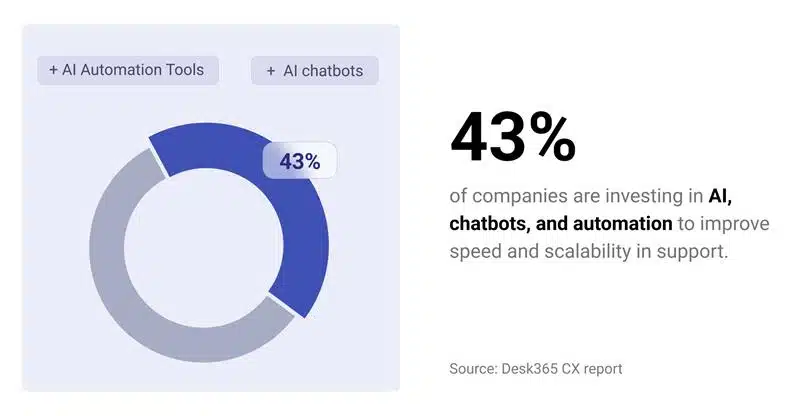
Support teams are automating because ticket volume grows faster than headcount. According to Desk365’s report, 43% of companies are investing in AI, chatbots, and automation to improve speed and scalability in support. The goal isn’t replacing agents. It’s removing the friction around repetitive work, so response times improve and agents can spend their time on complex, high-value issues.
Aden Ritz of VirtuHire sees the same pattern with the lean teams he works with. Automation rarely cuts headcount. It changes what’s left in the queue: judgment calls, exceptions, and upset customers. The five ticket types below are where that shift is easiest to start.
What are the most repetitive helpdesk tickets?
Fixify’s 2026 IT Help Desk Benchmark Report (more than 50,000 tickets across over 30 organizations) puts app assignment at 28.1% of all tickets, more than four times the next category. Permissions management is second at 6.2%, employee offboarding third at 5.8%, onboarding at 5.7%, and login troubleshooting at 4.9%. Software and applications, onboarding/offboarding, and identity and access management together account for over 70% of volume.
Those five made this list for a reason beyond ranking high: each follows a repeatable path. InvGates criteria for automation candidates are a repeatable sequence of steps, clear decision points, defined ownership, and system actions, with exceptions routed to an agent. Each of these five clears that bar.
Automation 1: App access requests
Why should you automate app access requests first?
App access requests take the most time because every new tool and every new hire creates another one. As per Fixify, app assignment made up roughly half of all tickets at companies with 500 to 999 employees, and its dataset held nearly 500 different applications. Larger companies average far more distinct apps in their ticket data than smaller ones.
The slow part usually isn’t the access itself. It’s knowing who approves it. As per Fixify, most organizations have never written down which person approves access to each app, so IT spends its time chasing approvers before it can act. That is why automation starts with a documented list, not a tool. Waiting has a cost. As per a Dimensional Research survey of 313 IT, HR, and sales professionals at companies with 1,000 or more employees, 72% said it takes at least a week for a typical worker to get access to the systems they need.
How to automate app access requests in Desk365
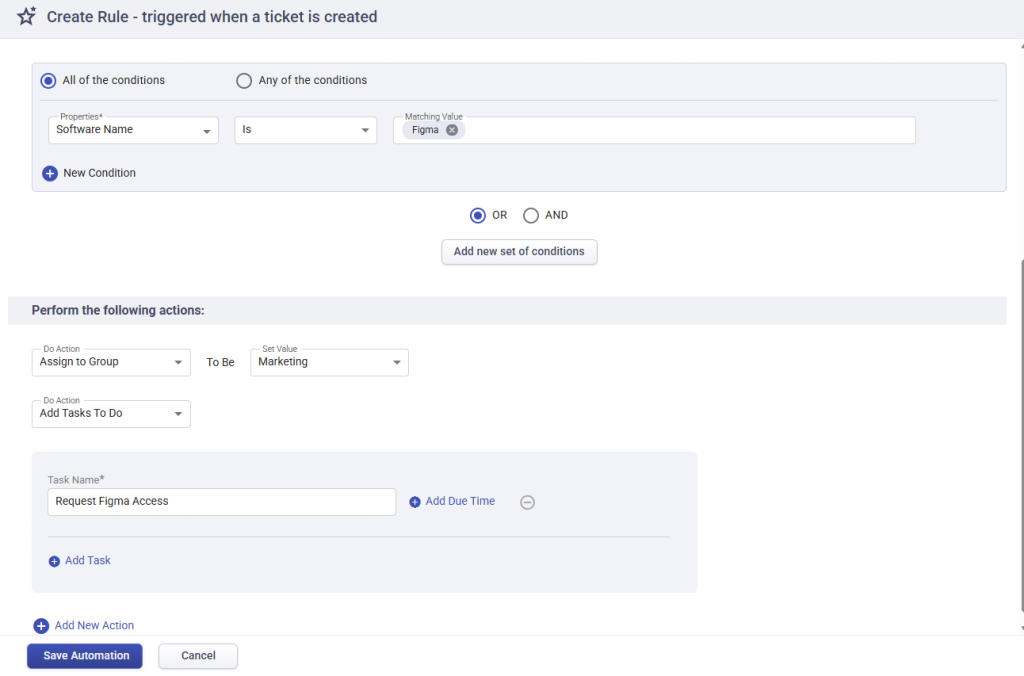
Desk365 automates app access requests by sorting them on a custom field. For example, apps like Figma go straight to the team that provisions them. Desk365 does not install software or grant licenses by itself, so the last step is an agent task or a webhook to your deployment tool.
Create a dropdown custom field like Software name with the choices like Figma and then include this dropdown on your software request form.
Here are the steps,
- Go to Settings > Productivity > Automation > Ticket Creation and click Create New Rule.
- Set the condition to Software name is Figma.
- Add the actions. Assign to group; the group is, for example- Marketing. Add Tasks To Do to create a “Request Figma Access” task with a due time. And also you can add Trigger Webhook calls your provisioning tool if you have one.
- Click Save Automation.
Automation 2: Permission changes
Why do permission changes stall without approval automation?
Permission changes stall because they need a person to say yes, and that person is rarely watching the queue. As per Fixify, permissions management is 6.2% of tickets, the second most common use case. The delay is not the change itself. It’s the wait between “someone should approve this” and someone actually doing it, the same wait behind the 72% figure in the Dimensional Research survey above.
Permission changes differ from app access in one way that matters for automation. They almost always need an approver, so you can’t skip the approval step. You can only make it instant to route and easy to act on.
How to automate permission changes in Desk365
Desk365 automates permission changes with Change/Approval Management. You build the approval workflow once, then a ticket creation rule requests approval the moment the ticket arrives. Approvers get an email and a Microsoft Teams notification, so nobody has to chase a message.
First, create the workflow. Go to Settings > Productivity > Approval Process. Desk365 supports two workflow types, and the choice matters more than anything else in this setup.
A sequential workflow runs approvers in a fixed order. If any approver rejects, the process stops, and the request is marked rejected. Use it when a manager must sign off before the app owner, and the app owner before IT.
A non-sequential workflow notifies everyone at once. You choose between Everyone must approve and Anyone can approve. Use Anyone can approve for low-risk changes where one signature is enough.
Automation 3: Offboarding
Why does offboarding need automation?
Offboarding needs automation because a slow exit is a security gap, not just an inconvenience. As per Fixify, employee offboarding is 5.8% of tickets, the third most common use case. As per the Dimensional Research survey, half of respondents said it usually takes three days or longer to revoke access for a worker who leaves. Every account, license, and permission still active after someone leaves is a door that’s still unlocked.
Offboarding lags for a structural reason. It starts with an HR event, not a support request, so it’s easy for it to fall between systems that don’t talk to each other. A fixed checklist attached to a single ticket closes that gap.
How to automate offboarding in Desk365
Desk365 automates offboarding with an Offboarding Form and a fixed checklist. The form starts the ticket, and the rule attaches every removal task with a deadline. Every account, license, and device gets a line item, and Desk365 records each task on the ticket.
Have HR submit an offboarding form, or forward the HR system’s departure notice to your helpdesk email address so a ticket is created for you. Then build the rule.
- Go to Settings > Productivity > Automation and open the Ticket Creation tab.
- Click Create New Rule and name it “Employee offboarding.”
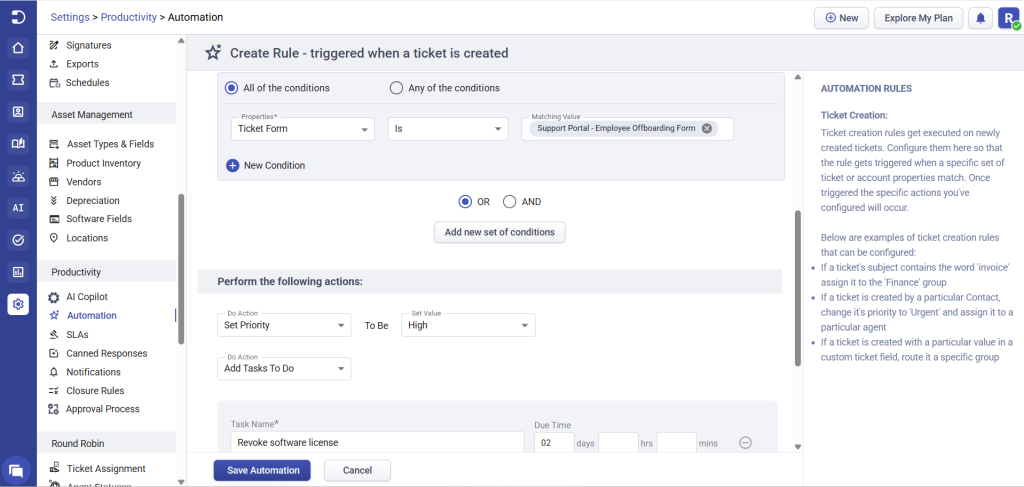
- Set the condition to Ticket Form is your Offboarding Form.
- Add the action Set Priority to High.
- Add one Add Tasks To Do action per removal step. A good list is Disable the main account, Revoke software licenses, Remove app and network access, and Recover the laptop and other devices.
- Add Add Watcher and choose your security lead, so the right person sees every offboarding ticket.
- Add Notify Group for the team that handles account removal.
- Click Save.
Desk365’s time-based triggers add a safety net. A time-based rule can remind the assigned agent when a ticket has been pending too long, so an offboarding ticket cannot sit unnoticed. Set the reminder for a short window, since open accounts are the whole risk.
If you need the removal itself to happen in another system, add Trigger Webhook to the same rule. It sends the ticket data to the tool that revokes the account. Desk365’s webhook sends data out, so it starts actions in other tools but does not receive events from your HR system.
Automation 4: Onboarding
Why does onboarding take days without automation?
Onboarding takes days because the setup is a checklist that lives in someone’s head. Provisioning a laptop, email, software licenses, and network access usually means separate manual steps handled by whoever picks up the ticket that day, in whatever order they remember. Skip one and the new hire is back in the queue on day one.
The cost shows up on the new hire’s side. As per BambooHR’s onboarding research, which surveyed 1,500 US employees and interviewed more than 40 recent hires, 58% listed a lack of access to essential tools as one of their biggest frustrations, and 51% listed technology issues such as malfunctioning computers and missing setup. As per Fixify, onboarding is 5.7% of tickets, and onboarding and offboarding together make up 20% of tickets at companies with 100 to 499 employees and 26% at companies with 1,000 or more.
How to automate onboarding and device setup in Desk365
Desk365 automates onboarding with the Tasks to Do action. When a ticket comes in from your onboarding form, the rule attaches a fixed checklist to it, and each task gets its own due time. The steps run in the same order for every new hire, and each one is tracked instead of remembered.
Before you build the rule, make sure you have an onboarding ticket form. In the Desk365 help article, the example form is called “Support Portal – Onboarding form.” Your HR team submits it, and the form is what the rule watches for. Tasks to Do works only on tickets created after the rule exists, so old tickets will not get the checklist.
Now build the rule.
- Go to Settings > Productivity > Automation and open the Ticket Creation tab.
- Click Create New Rule and name it “New hire device setup.”
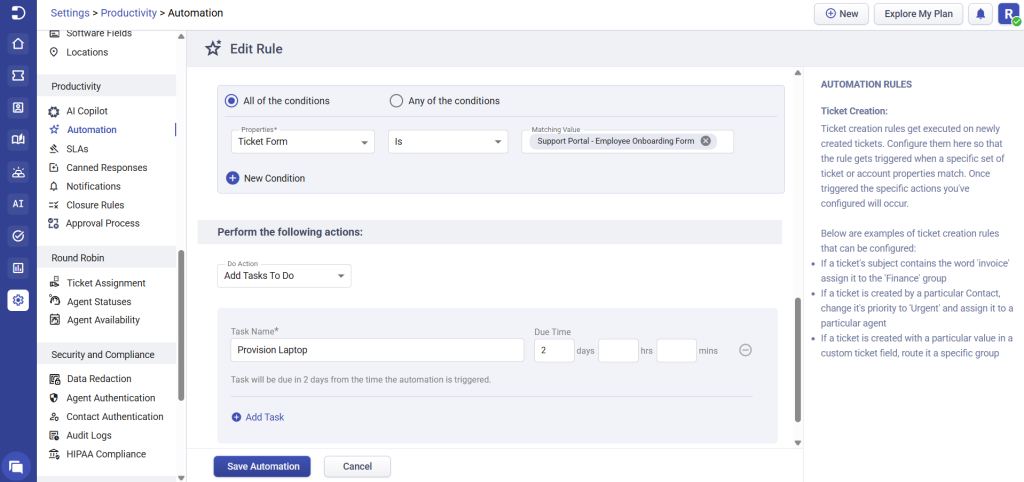
- Set the condition to Ticket Form is Support Portal – Employee Onboarding form.
- Under actions, choose Add Tasks To Do. Name the first task, such as “Provision Laptop,” and set how long the agent has to finish it. In the help article’s example, the deadline is one day after ticket creation.
- Click Add New Action for each remaining task. A good checklist is Image the laptop, Create the email account, Assign software licenses, and Grant network and app access.
- Click Save.
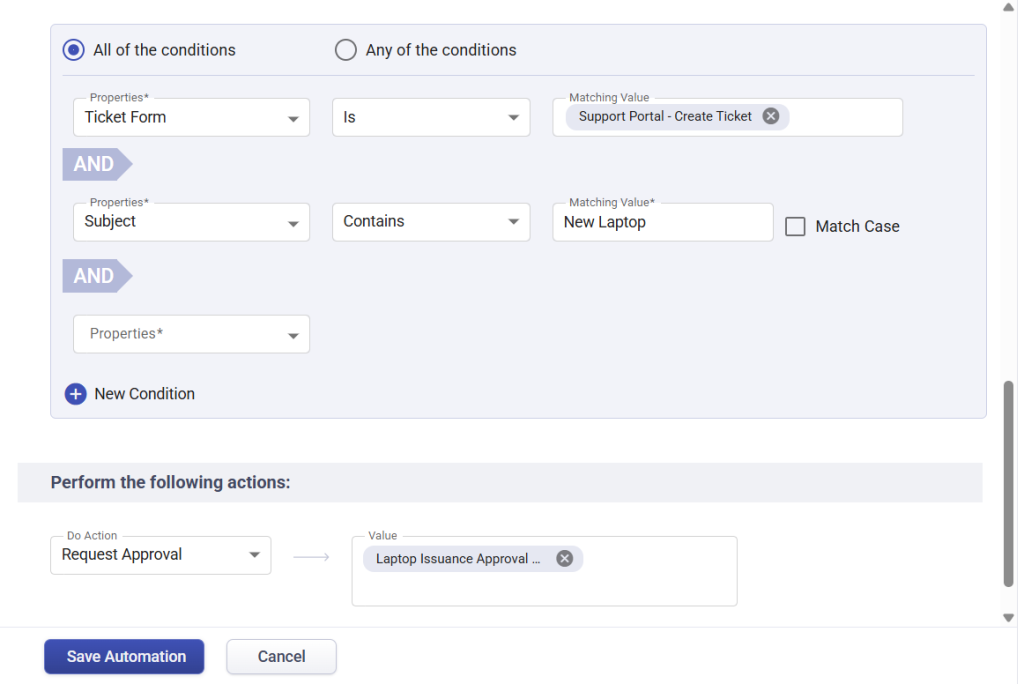
Laptop budgets often need a sign-off, and you can add it to the same rule. Add a Request Approval action next to the tasks, using a laptop workflow built the same way as the permission change workflow above. The Desk365 help center’s own example has three approvers: the hire’s manager, the department head for budget, and the IT manager for inventory.
Add an Assign to Group action as well, so the ticket lands with the desktop support team instead of a general queue.
Automation 5: Password resets
Why are password resets still worth automating?
Password resets are worth automating because they are simple, frequent, and need no judgment. As per Gartner and Forrester, cited by BleepingComputer, they are 20% to 50% of help desk calls and cost about $70 in help desk labor per reset. Treat the exact share as a range, since Fixify’s data shows login troubleshooting at 4.9% of tickets.
The cost isn’t in the reset itself. Verifying identity and setting a new credential takes minutes. It comes from volume, the same short task repeated many times a day by an agent who could be working on something that needs judgment.
How to automate password reset tickets in Desk365
Desk365 automates password reset tickets by combining a ticket creation rule, a knowledge base article, and the AI Agent. The rule catches the request the moment it arrives. The AI Agent answers with your self-service steps. If your identity tool accepts webhooks, the rule can also hand the reset itself to that tool.
Start with the knowledge base article, because everything else pulls from it. Write one short article per reset path, such as “How to reset your Microsoft 365 password.” Desk365 allows unlimited knowledge base articles, even on the Standard plan. A thin article gives the AI Agent nothing to work with, so put the real steps and the real portal link in it.
Next, turn on the AI Agent.
- Go to Settings > Productivity > AI.
- In the Advanced AI section, turn on Enable Advanced AI features for your helpdesk.
- Scroll to Desk365 AI Agent and enable the AI Agent option.
- Select both the ticket data and knowledge base options so replies draw on past tickets and your articles.
Then build the ticket creation rule.
- Go to Settings > Productivity > Automation and open the Ticket Creation tab.
- Click Create New Rule and give it a name such as “Password reset intake.”
- Under conditions, choose Subject and the Contains operator, then enter “password reset.” Exact matching only fires on the whole phrase, so a ticket about a “reset switch” will not trigger it.
- Add a second condition with New Condition if you want to limit the rule to one channel, such as Support Portal or Microsoft Teams.
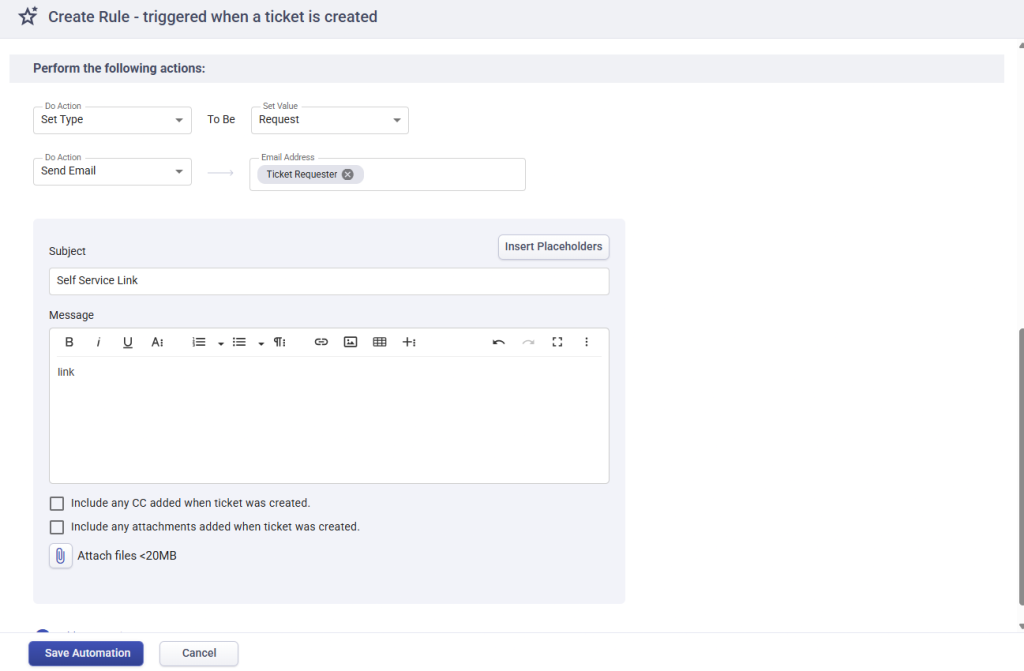
- Under actions, set the type to Request, then add the actions you need with Add New Action. A good starting set is Set Type, Send Email to the requester with your self-service link, and Trigger Webhook.
- Click Save.
Which Desk365 plans include these automations?
Automation Rules and the Trigger Webhook action are available on Desk365’s Standard, Plus, and Premium plans. Tasks to Do and Change/Approval Management are available on Plus and Premium. If your team is on Standard, start with password resets and software installation, then move up when you are ready for approvals and checklists. Confirm current tiers on the Desk365 pricing page
Frequently asked questions
Yes, for the routing. A ticket creation rule can start an approval workflow the moment a ticket arrives, and approvers can respond from email or Microsoft Teams. The approvers still make the decision, which is the point. Desk365 removes the waiting, not the oversight.
Arguably more. A five-person IT team loses a much bigger share of its total capacity to the same five repetitive tickets than a fifty-person team does, because there’s no slack to absorb the volume.
It varies by organization, but the ServiceNow case studies on enterprise onboarding show provisioning time cut from three days to four hours after automation, and that pattern holds across most of these five ticket types: the time isn’t spent on the task, it’s spent waiting for a human to get to it.
Start with app access requests if you’re on Plus or Premium. Fixify puts app assignment at 28.1% of all tickets, more than four times the next category. If you’re on Standard, start with password resets and software installation, since approvals and checklists need a higher plan.