


Picture this: a colleague messages your IT team on Microsoft Teams about a login issue. It gets a few reactions, someone says “I’ll look into it”, and then it disappears into the chat history, never resolved. Meanwhile, three other people have messaged different agents about the same problem, and nobody knows who owns what.
Sound familiar?
It’s more common than you’d think. An average agent now receives 153 Teams messages every single weekday, that’s a new message roughly every three minutes. For IT support teams, that relentless stream makes it nearly impossible to distinguish a casual chat from a critical support request. And the cost of getting it wrong is real: without structured workflows, the average mean time to resolution for IT issues stretches beyond 30 hours, leaving employees idle and frustrated.
Real IT admins are asking the same question
This isn’t just a theoretical problem. In a candid Reddit thread on r/MicrosoftTeams, a sole IT admin supporting around 100 employees put it plainly:
“I need a centralized platform to manage all incoming support requests… Users should be able to create and track tickets directly within Teams, using their existing credentials.”
The responses poured in, and they revealed just how universal this frustration is. One commenter, razornish, shared their real-world experience:

Another user, Main-ITops77, echoed the sentiment:

Even users who tried alternatives flagged the friction. kr1mson, a Teams Admin who tested a competing tool, noted a common pitfall with chatbot-based systems:
“If your users already use email and Teams to ask for help, you still will have to fight to get them to respond using the chat bot, and get ready for people to miss those messages because they were expecting ‘you’ to respond.”

The takeaway from the thread is clear: IT teams don’t just need a ticketing tool, they need one that fits naturally into how their people already work inside Teams, with no extra logins, no context-switching, and no messages falling through the cracks.
That’s exactly where automated ticket assignment changes everything. 86% of service professionals report improved productivity after implementing proper helpdesk software, and companies using IT help desk services have seen up to a 25% increase in productivity thanks to faster resolution and reduced downtime.
In this guide, we’ll show you exactly how to set up automated ticket assignment inside Microsoft Teams, so the right ticket always reaches the right person, automatically
So, what does a proper fix actually look like?
Your employees are already there on Microsoft Teams. Your IT team is already there. Pulling everyone into a separate tool just creates a different version of the same problem, now you have two places to check instead of one.
What you actually need is structure layered on top of Teams. A way to take the chaos of incoming messages and turn them into trackable, assignable, reportable tickets, without asking anyone to change how they work or where they work.
That means three things need to happen automatically, every time a request comes in:
- The ticket needs to be captured. Not copy-pasted into a spreadsheet. Not mentally noted by whoever happened to see the message first. Actually logged, with a number, a status, and an owner.
- It needs to reach the right person. Not whoever’s online. Not whoever the manager remembers to ping. The right agent, based on their skillset, availability, and current workload.
- Everyone needs to know what’s happening. The person who raised the issue should know their request was received and is being handled. The agent should know the moment something lands in their queue. No one should have to chase anyone for an update.
When these three things happen without any manual effort, IT support stops being reactive and starts being reliable.
This is exactly the problem Desk365 was built to solve, and it does it entirely inside Microsoft Teams. You can install Desk365 in minutes from the Microsoft App Store.
Let’s get in depth and see how this is done.
How Desk365 automates ticket assignment in Microsoft Teams
Once a ticket enters Desk365, whether submitted through the Support Bot in Microsoft Teams, email, or the support portal, the system doesn’t just sit and wait for an admin to manually assign it. It gets to work immediately. Here’s how the whole thing comes together.
Step 1: Automation rules kick in the moment a ticket is created
The first thing Desk365 does when a new ticket arrives is check your automation rules. Think of these as the traffic signals of your help desk, they look at what just came in and decide where it should go, who should own it, and what needs to happen next.
You define the logic once, and Desk365 handles the rest every single time.
For example, you can set a rule that says: if a ticket comes in through Microsoft Teams and the category is “Software”, assign it to the IT Support group and set the priority to High. Or, if a ticket is submitted via the HR form, route it straight to the HR team.

The conditions you can work with are broad: ticket type, priority, subject keywords, the channel it came in from, the company the contact belongs to, even the time of day it was created.
Once the conditions are matched, Desk365 executes the actions instantly, assigning the ticket to an agent or group, setting its priority or category, adding a private note for context, notifying the right agent, applying an SLA, or even pinging the ticket requester via the Support Bot in Microsoft Teams so they know their request has been received and is being handled.
You can also layer your conditions using AND/OR logic, so complex IT ticket routing decisions, the kind that used to eat up an admin’s morning, happen automatically in the background.
Step 2: Round Robin distributes the work fairly
Automation rules decide where a ticket goes. Round Robin decides who gets it.
Once a ticket is routed to a group, Desk365’s Round Robin ticket assignment takes over and distributes it to the next available agent, no manual picking, no second-guessing, no one agent quietly drowning while another has an empty queue.
Desk365 offers two modes depending on how your team operates:
- Classic Round Robin cycles through agents in a fixed order. Agent 1, then Agent 2, then Agent 3, then back to Agent 1. Simple, predictable, and fair on paper, every agent gets the same number of tickets over time.
- Load-aware Round Robin goes a step further. Instead of just cycling through agents in order, it checks how many active tickets each agent is currently handling before assigning. If Agent 1 already has 15 open tickets and Agent 3 only has 4, the next ticket goes to Agent 3, regardless of whose “turn” it is in the queue. This prevents burnout, keeps response times consistent, and means your busiest agents aren’t piling up work while others are free.
You can set a load limit per agent. If every agent in a group hits their limit at the same time, the ticket stays unassigned until someone resolves a ticket and frees up capacity, rather than being force-assigned to someone who can’t realistically handle it.
The system also respects agent availability in real time. If an agent is marked as unavailable, on lunch, or has scheduled time off, Desk365 skips them automatically and moves to the next available agent. No tickets slip through, and no one gets assigned work while they’re out of the office.
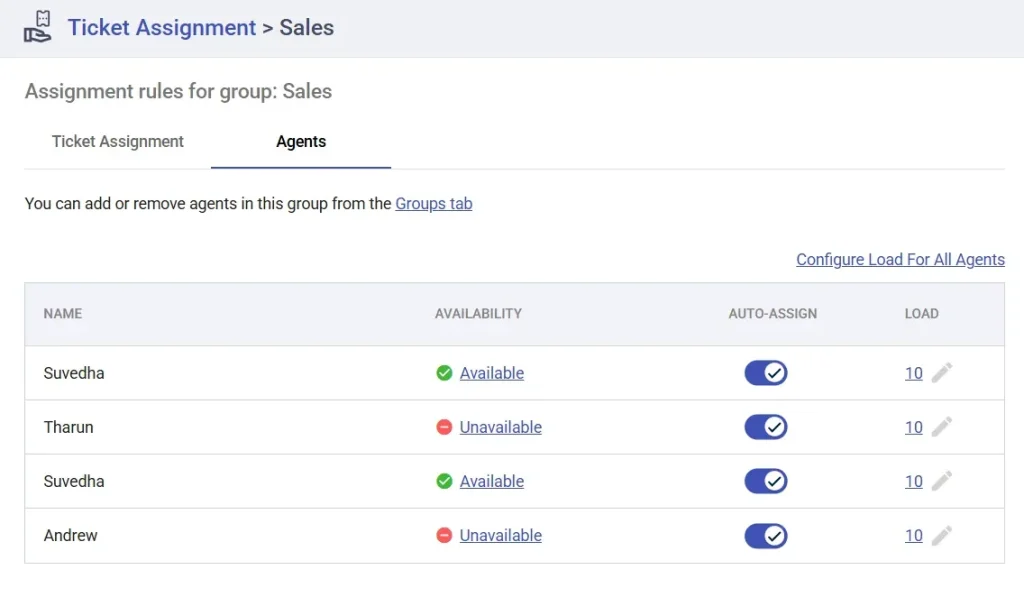
Step 3: Agents and users are notified instantly in Microsoft Teams
Once a ticket is assigned, nobody has to go looking for it. Desk365’s Agent Bot, which lives natively inside Microsoft Teams, sends an instant notification to the assigned agent, letting them know a new ticket has landed with them. Agents can view, reply to, and update tickets directly from within Teams without ever switching to another tab or app.
For end users, the Support Bot works the other way too. When their ticket is updated i.e., status changed, response added or issue resolved they get a notification straight to their Teams chat. No need to log into a separate portal to chase progress. Everything happens in the tool they’re already using all day.

This is exactly what the IT admins in that Reddit thread were looking for, the entire Microsoft Teams ticketing experience contained within Teams itself, with no extra logins and no context switching, for both the person raising the issue and the agent resolving it.
Putting it all together: An end-to-end example
To bring it together: an employee messages the Support Bot in Teams to report a VPN issue. A ticket is created automatically. An automation rule detects the category, routes it to the Network Support group, sets priority to High, and fires off an SLA. Round Robin checks agent availability and workload, then assigns the ticket to the agent with the lightest load. That agent gets a Teams notification immediately. The employee gets a confirmation through the Support Bot that their ticket is being handled. And every action from the routing, the assignment to the notification is logged in the ticket activity trail, giving full visibility to anyone who needs it.
No lost messages. No manual triage. No guesswork about who owns what.
If any part of this guide felt familiar, the lost messages, the manual triage, the “who’s handling this?” Moments, you already know the problem is real. The good news is the fix isn’t complicated.
Desk365 takes everything that’s already happening in Microsoft Teams and gives it structure. Tickets get captured, routed, assigned, and tracked automatically. Your agents stop firefighting and start resolving. Your employees stop wondering and start getting answers.
The best way to see it is to try it yourself.
Start your free 21-day trial, no lengthy setup, no reason to wait.
Or if you’d rather see it in action first, book a demo and we’ll walk you through exactly how it works for a team like yours.