

Your customers are in Teams. Your support team is in Teams. Your tickets shouldn’t be somewhere else.
Seems we’re not the only ones thinking this. Someone on Reddit put it perfectly:
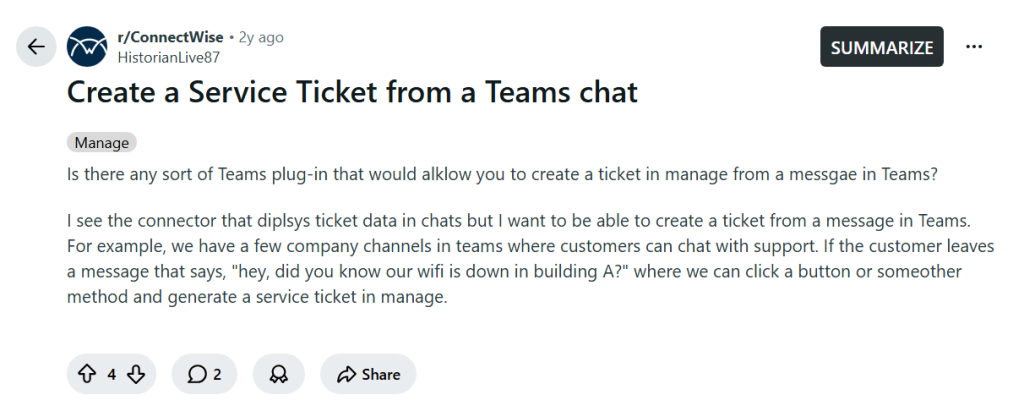
Source: Reddit
Sound familiar? Because that’s the case with most support teams we’ve talked to.
Most teams are still doing it the hard way, screencapping messages, jumping to another tab, typing it all out manually, and praying nothing slips through. Every. Single. Time.
That’s not a workflow. It’s a workaround.
A Microsoft Teams ticketing system fixes exactly that. Messages become tickets right from within the chat. No app-switching, no copy-pasting, no requests quietly dying in a channel nobody checked.
If your team is already living in Teams, your support system should too.
In this guide, we’ll show you exactly how to turn Microsoft Teams into a fully functional ticketing system so your team can stop juggling tools and start actually solving problems.
What is a Microsoft Teams ticketing system?
A Microsoft Teams ticketing system lets your support agents receive, create, and manage tickets without ever leaving Teams. No separate helpdesk tab, no switching between tools, no copy-pasting customer messages into another system.
The idea is simple: when a customer sends a message in your Teams channel, your agent can convert it into a support ticket right there from within the conversation. The ticket gets logged, assigned, and tracked, all from inside the same chat window.
For teams that use Teams extensively, this is a big deal. Instead of managing support across two or three different tools, everything sits in one place. Customer messages, ticket status, agent responses, all of it.
Some companies build this using Power Automate to connect Teams with their existing helpdesk. Others use a dedicated app that plugs directly into Teams and brings ticketing features with it. Either way, the goal is the same. Your team handles support where they already are, not somewhere else.
Before we show you how to set up Microsoft Teams as your ticketing system, let’s look at why so many companies are making this move in the first place
Why are companies moving support into Microsoft Teams?
Microsoft reports Teams now has more than 320 million daily active users, and over one million organizations use it as their primary collaboration platform.
When almost everyone in a company already uses Teams for chat, calls, and meetings, asking them to remember a separate help desk portal creates friction. People forget the URL, lose the bookmark, and default back to messaging a coworker directly, because it’s just simply faster.
Building support into Teams removes that friction and brings a set of meaningful benefits with it.
Benefits of a Microsoft Teams ticketing system
1. Faster answers through self-service
A well-organized support channel with pinned guides, forms, and a knowledge base lets people solve simple problems themselves, without waiting on an agent who might be busy or offline. That cuts ticket volume before it ever reaches a queue.
2. Fewer interruptions for agents
Without structure, a support agent’s day fills up with individual direct messages, each one competing for attention with no order or priority. A ticketing system replaces that with a single, organized queue, so agents work through requests one at a time instead of juggling chat windows.
3. Real accountability on every request
Once a request becomes a ticket with an assigned owner, it’s much harder for it to quietly disappear. Status, priority, and history stay visible to anyone who needs them, so fewer requests slip through the cracks, and fewer employees have to chase a second time for an update.
4. Less time wasted on context switching
Employees don’t have to learn a new platform or remember a separate login, and agents don’t have to flip between Teams and a browser tab to update a ticket. Keeping the entire workflow inside one app everyone already uses every day removes a surprising amount of friction from both sides.
5. Easier automation
Once requests follow a repeatable format, you can build automation around them. A ticket can get auto-assigned by category, a reminder can fire if nobody replies within a set time, and a routine question can get answered before it ever needs a human agent.
6. Better visibility for managers
A ticketing system gives a support lead something to measure. Ticket volume by category, average resolution time, and recurring issues all become visible instead of anecdotal, which makes it easier to spot a bottleneck early and staff or train around it before it becomes a bigger problem.
7. A model that scales across departments
The structure that works for IT support works as well for HR, finance, or facilities. Each team gets its own channel and queue, with clear ownership, so employees don’t have to learn a different system for every kind of request.
Those benefits sound good on paper. The real question is how you actually build this thing.
Two ways to build a ticketing system in Teams
There are two paths here, and the right one depends on how much support volume your organization handles.
A. The first path is a do-it-yourself setup, using tools you likely already have in Microsoft 365: Teams channels, Microsoft Forms, Planner or Lists, and Power Automate to connect them. It costs nothing extra and can be running within a day. It works well for small teams with a manageable, fairly simple volume of requests.
B. The second path is a dedicated Microsoft Teams ticketing app, like Desk365, Tikit, or several others covered later in this guide. These add features the DIY approach can’t reasonably replicate on its own, including service level agreement (SLA) tracking, reporting, email-to-ticket conversion, and routing across multiple departments.
Most organizations start with the DIY approach and move to a dedicated app once volume or complexity grows. The next two sections walk through both paths in order.
Let’s start with the DIY route, since that’s where most teams begin.
A. Building a DIY ticketing system inside Teams
Here’s a practical setup, using only tools already included in most Microsoft 365 plans.
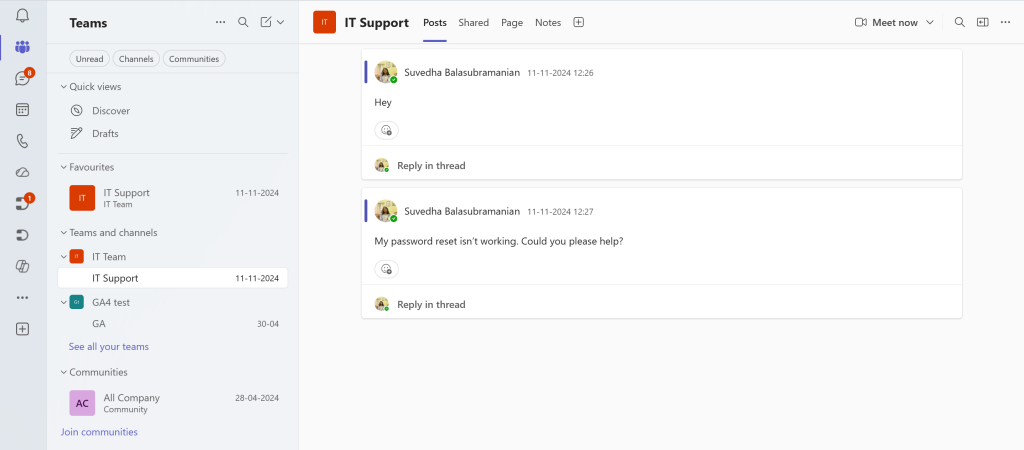
Step 1: Create dedicated support channels
Start by creating a channel for each support team that needs one, such as IT Support, HR Support, or Facilities. Make it easy to find, and add it to your onboarding materials so new hires know where to go.
A dedicated channel does more than route messages. It creates a shared, searchable history of past issues and solutions, so employees can often find an answer by scrolling or searching the channel before they even ask.
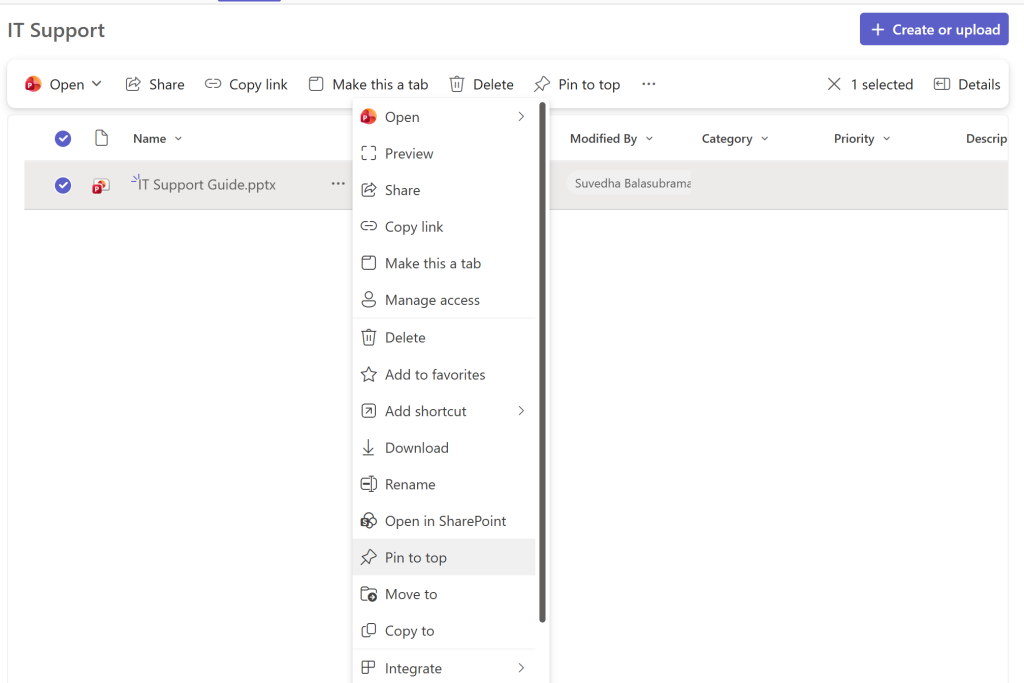
Step 2: Pin your knowledge base and FAQs
Pinned messages in a Teams channel are an easy way to surface answers before a question becomes a ticket. Pin a short list of frequently asked questions, links to relevant SharePoint documentation, and any emergency contact information, and review them from time to time so they stay accurate.
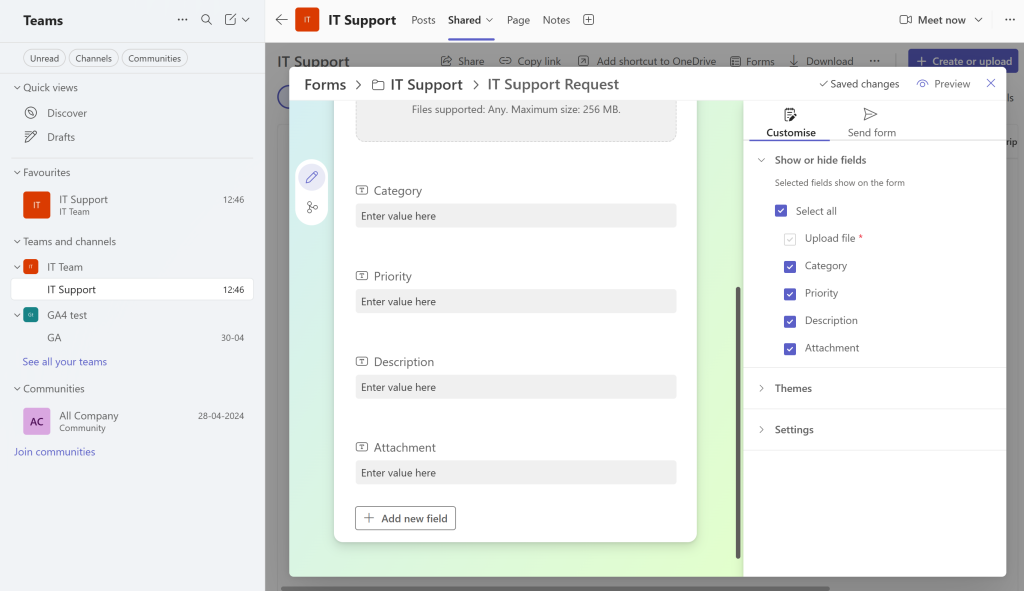
Step 3: Build an intake form with Microsoft Forms
A plain chat message rarely has everything an agent needs. A short Microsoft Forms intake form fixes that, asking for the details up front: category, priority, a description, and an attachment if relevant.
Keep the form short. A 10-field form that takes five minutes to complete pushes people back toward direct messages. Ask only for what the first responder needs to triage the request.
Step 3: Track tickets with Planner or Lists
Once a request comes in through the form, it needs a home where someone can track its status. Microsoft Planner works well for simple boards with columns like New, In Progress, and Resolved. Microsoft Lists fits better if you want more structured fields, like a due date, an assigned agent, or a priority level you can sort and filter by.

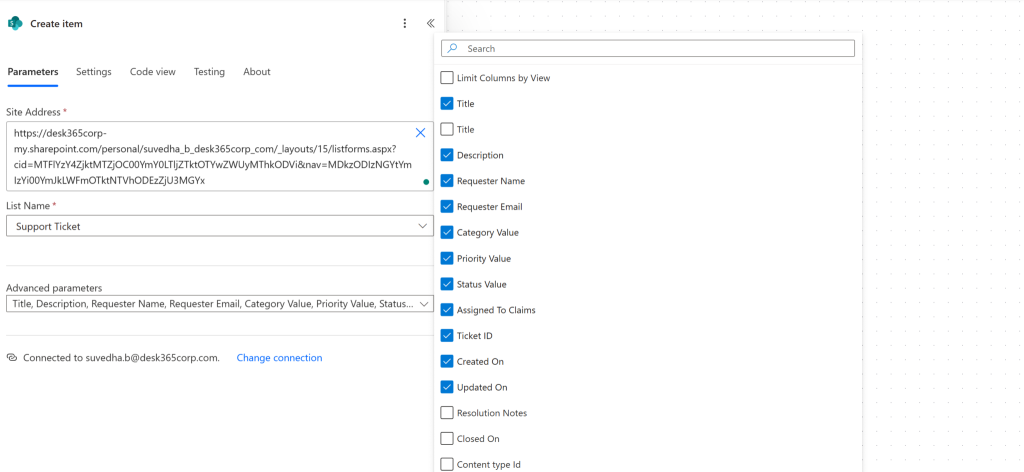
Step 4: Automate the handoffs with Power Automate
This step turns a form and a board into something resembling a real workflow. Power Automate can take a new Forms submission and automatically create a card in Planner or a row in Lists, notify the right channel, and send the requester a confirmation. You can also set up reminders, so a ticket that’s gone quiet for a day gets flagged automatically.
That covers the setup. Now here’s where it tends to fall apart.
Where the DIY approach breaks down
This setup works for small teams with low request volume and simple needs, but it tends to break down in a few predictable ways as an organization grows.
There’s no real SLA tracking. You can set a reminder, but Teams, Forms, and Planner have no native concept of a response time target or an escalation path when that target is missed.
Reporting stays manual. Pulling a chart of ticket volume by category or agent means exporting data and building it yourself, and most support teams don’t have time for it.
Email requests are a separate problem. If anyone outside your organization, or even an employee checking email instead of Teams, needs to raise a request, this setup has no way to capture it.
Multi-department scaling gets messy fast. Running the same pattern for IT, HR, finance, and facilities means four separate channels, forms, boards, and flows to maintain, with no shared view across any of them.
None of this means the DIY approach was a bad idea. It’s usually the right starting point. It has limits, though, and most growing organizations hit those limits sooner than expected.
So if you’re past that point, here’s what actually matters when picking a dedicated tool.
B. Getting a dedicated Microsoft Teams ticketing system
Once you decide to move beyond the DIY setup, a handful of features separate a useful app from one that adds another notification to your day. Here’s what to look for in your dedicated tool.
A true native Teams experience
Some tools only send Teams a notification when something happens elsewhere. Others let agents create, update, and resolve a ticket entirely inside Teams, often through a bot, without ever opening a separate browser tab. The second kind saves real time across hundreds of tickets a month.
Tickets from every channel, not just Teams
Support requests rarely arrive through one door. A good ticketing app pulls in email, a web portal, and Teams messages, and turns all of them into tickets in one shared inbox, so nothing gets missed because it came in through the wrong channel.
Automated routing and SLAs
Look for rules that assign a ticket to the right person or department on their own, based on category, keyword, or workload. Look for SLA timers too, ones that flag a ticket before it breaches its deadline, not after.
Self-service and AI deflection
A knowledge base, or an AI assistant trained on it, can answer common questions directly in Teams. That alone cuts down how many tickets agents ever have to touch in the first place.
Reporting you can act on
Built-in dashboards covering response time, resolution time, ticket volume, and customer satisfaction help a support lead spot trouble early. You should be able to see, for example, that one department keeps missing its SLA, without building a spreadsheet from scratch every month.
Pricing that fits how you use it
Per-agent pricing scales directly with headcount, which can get expensive for organizations with many occasional ticket handlers. Other tools are priced by usage or by organization instead. Neither model is better across the board, but it’s worth checking which one matches how your team works before you commit.
With that checklist in mind, here’s how the actual options stack up.
Setting up Desk365 inside Microsoft Teams
If you decide a dedicated app is the right move, here’s what setting up Desk365 in Teams looks like
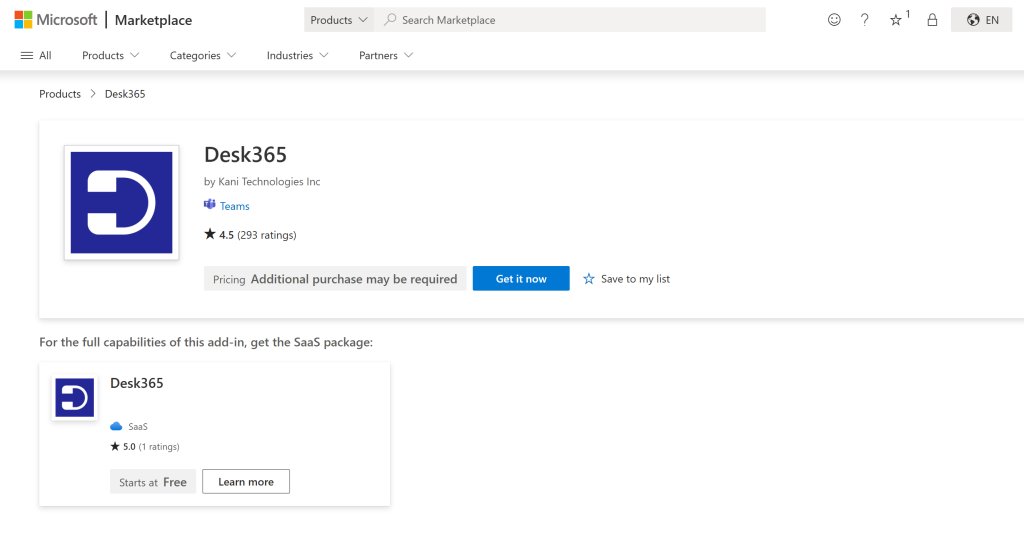
Step 1: Add Desk365 from Microsoft AppSource
Desk365 is listed on Microsoft AppSource and the Teams app store. An admin installs it for the organization, which makes it available to add to any team or channel.
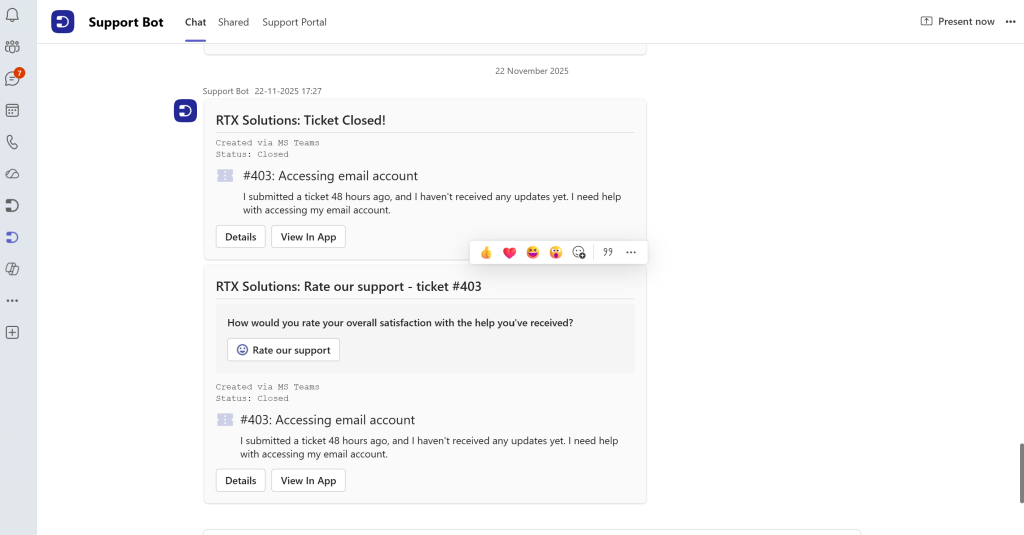
Step 2: Connect the Support Bot
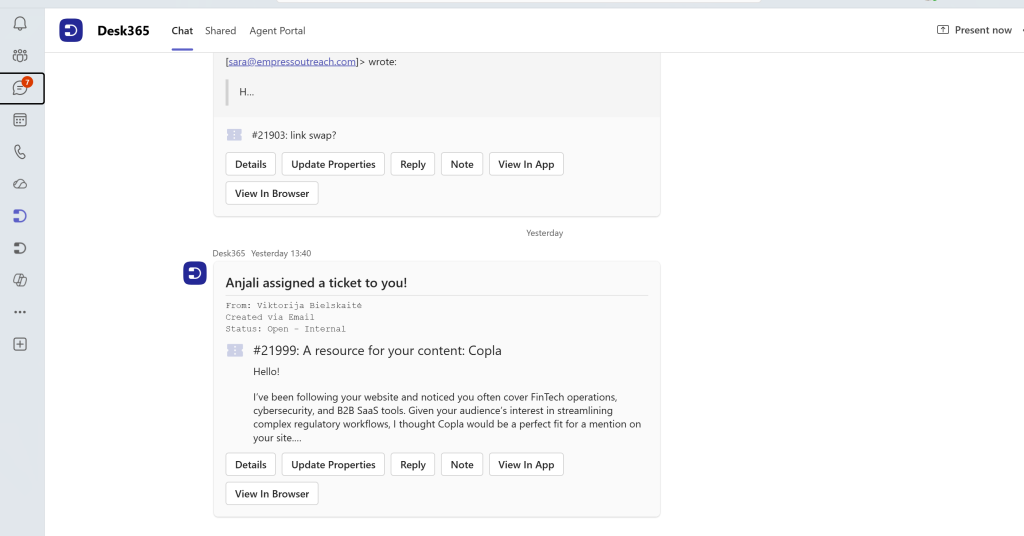
The Support Bot is what employees use. Once it’s added to a channel, anyone can message it directly to raise a new request, check the status of an existing one, or follow up. The bot turns each request into a structured ticket, complete with priority, department, and any attachments.
Step 3: Connect the Agent Bot
The Agent Bot is what your support team uses. From inside Teams, agents can reply to a ticket, add an internal note, change its status or priority, and see the full conversation history. None of this requires a separate browser tab.
Step 4: Turn on single sign-on
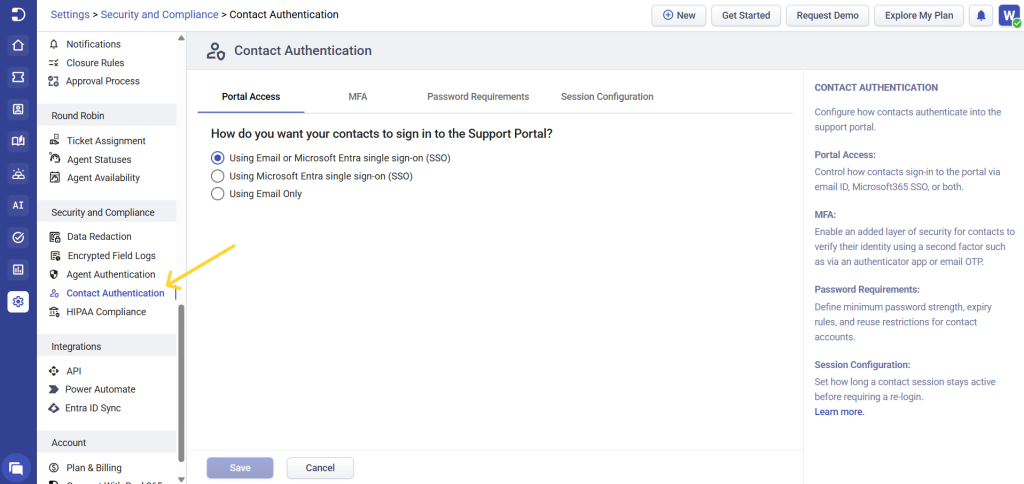
Desk365 supports single sign-on through Microsoft Entra ID. Employees and agents log in with the same Microsoft 365 credentials they already use every day. There’s no new password for anyone to remember, which speeds up adoption.
Step 5: Set up routing, SLAs, and the AI agent
From the Desk365 admin settings, you can build automation rules that assign new tickets by department or category, set SLA targets with escalation if a deadline is at risk, and turn on the AI agent so it can answer routine questions in Teams before a human agent needs to step in.
That’s the full setup, start to finish.
How to pick which method is right for you
A Microsoft Teams ticketing system isn’t about adding a new tool. It’s about giving structure to the work your team is already doing inside Teams every day. Start simple if your volume is low. A few channels, a form, and a Planner board can support a small team for a long time.
Once that setup starts straining, you’ll see the signs: SLAs get missed, requests fall through the cracks, and a support lead spends hours building reports by hand. That’s usually the moment to bring in a dedicated app built for the job.
Desk365 was built to keep that work inside Teams from start to finish, with the automation, reporting, and AI support a manual setup can’t match.
Frequently asked questions
Yes. Microsoft Teams can be set up as a basic ticketing system using channels, Microsoft Forms, and Planner or Lists, connected with Power Automate. For more advanced needs, like SLA tracking, reporting, and multi-channel ticket capture, most organizations add a dedicated app such as Desk365.
No. Microsoft Teams doesn’t include a native ticketing feature. Organizations either build a manual workflow with existing Microsoft 365 tools, or integrate a third-party ticketing app designed for Teams.
It depends on what your organization needs. For teams that want ticket management to happen entirely inside Teams, with strong automation, SLA tracking, and an AI agent included, Desk365 is a strong fit. Larger Microsoft-first IT departments with deep Power BI and Intune needs may prefer Tikit. The right answer comes down to your support volume, your budget, and how much you want agents to stay inside Teams instead of working in a separate interface.
A DIY setup using Forms, Planner, and Power Automate costs nothing beyond your existing Microsoft 365 license, though it may need a license tier that includes Power Automate. Dedicated apps typically charge per agent per month, with prices commonly ranging from around 10 to 30 dollars per agent. Usage-based pricing is also available from some providers.
Yes. The same approach works for any department that handles repeatable requests. HR teams use it for leave questions and onboarding tasks, facilities teams use it for maintenance and equipment requests, and finance teams use it for expense and payroll questions. Most dedicated apps, including Desk365, support separate departments with their own queues and routing rules.
A DIY setup inherits the security and compliance posture of your existing Microsoft 365 environment. Dedicated apps add their own layer of security on top of that. Reputable vendors publish details on compliance certifications such as SOC 2, GDPR, and HIPAA where relevant. It’s worth checking a vendor’s security documentation before rolling out any new app organization-wide.