


TL;DR
You can build a shared ticketing system by describing it to Claude in plain English. List the fields you need, paste one prompt into Claude.ai, test it with a sample ticket, refine it by chatting, and share the link with your team. It works well as an internal tracker, a prototype, or a demo. It does not replace a dedicated helpdesk if you need email intake, SLA automation, or a customer portal.
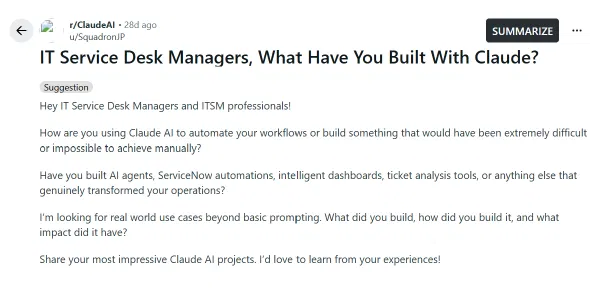
Building your own tool is fun. You skip the vendor demo and the long setup, open a chat, and make the thing you need. IT teams are already trying it. A recent thread on r/ClaudeAI asked service desk managers and ITSM professionals what they have built with Claude, from AI agents to ticket analysis tools.
This guide shows you how to build a working ticket tracker with Claude and no code. The tracker opens as a small app beside your chat and saves tickets in shared storage, so your team can use it by the end. You will see each prompt, each screen, and the point where this approach runs out of room.
Why create your own ticketing system using Claude
Claude lets you have a working ticket tracker today, without a developer or a separate ticketing tool. You describe the app in plain English, and Claude builds it. Here is what makes the approach appealing:
- It is fast. Claude builds the first version in 1 to 3 minutes.
- It fits your process. You choose the fields, statuses, priorities, and categories, so the tracker matches how your team already works.
- You change it by chatting. To add a field or a color rule, you type the request instead of editing code.
- Your team shares one list. Tickets live in shared storage, so everyone sees the same data.
- It suits prototypes and demos. You can test your ticket workflow before you commit to a helpdesk.
Those benefits hold for a small team with simple needs. The limits section later in this guide explains where they stop.
How to create a ticketing system using Claude, step by step
Follow these five steps in order.
What you need before you start
You need two things: a paid Claude plan (Pro or higher) and a short list of what your team wants to track. You do not need a code editor, a hosting account, or a database. Claude handles the app and its storage.
Step 1: Write down your requirements
Decide what the app must hold before you open Claude. A clear list gives you a much better first version. Use this as a starting point:
- Ticket fields: ID, title, description, requester, priority, status, assignee, category, created date, and updated date
- Statuses: Open, In Progress, Pending, Resolved, Closed
- Priorities: Low, Medium, High, Urgent
- Views: a ticket list, a ticket detail page, a create-ticket form, and a simple dashboard
Add any categories your team already uses, such as Hardware, Software, Access, or Network. That way the dropdowns match your process from day one.
Step 2: Ask Claude to build the app
Open claude.ai or the Claude desktop app, start a new chat, and paste a prompt that names your fields, views, and storage. This is the prompt used in this guide:
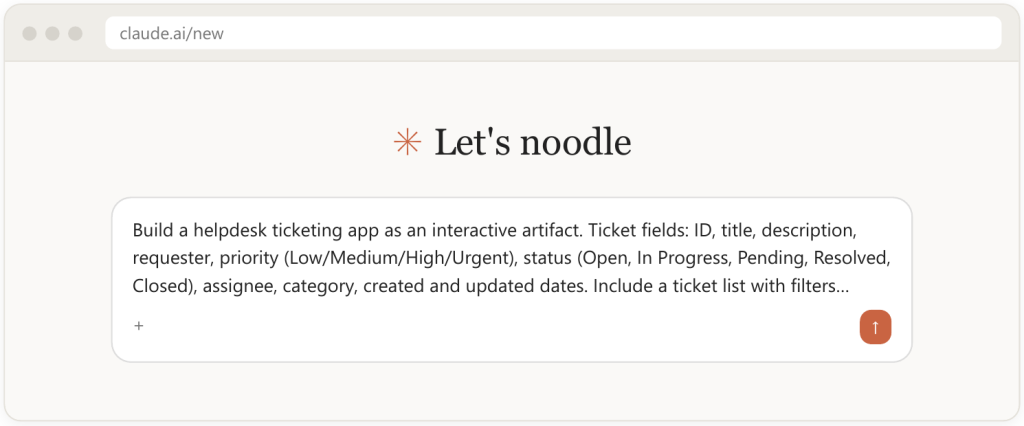
Two details make this prompt work. It names every field and status, so Claude does not have to guess. It also asks for shared storage, so your whole team sees the same tickets instead of a private copy each.
Step 3: Test that tickets are saved and shared
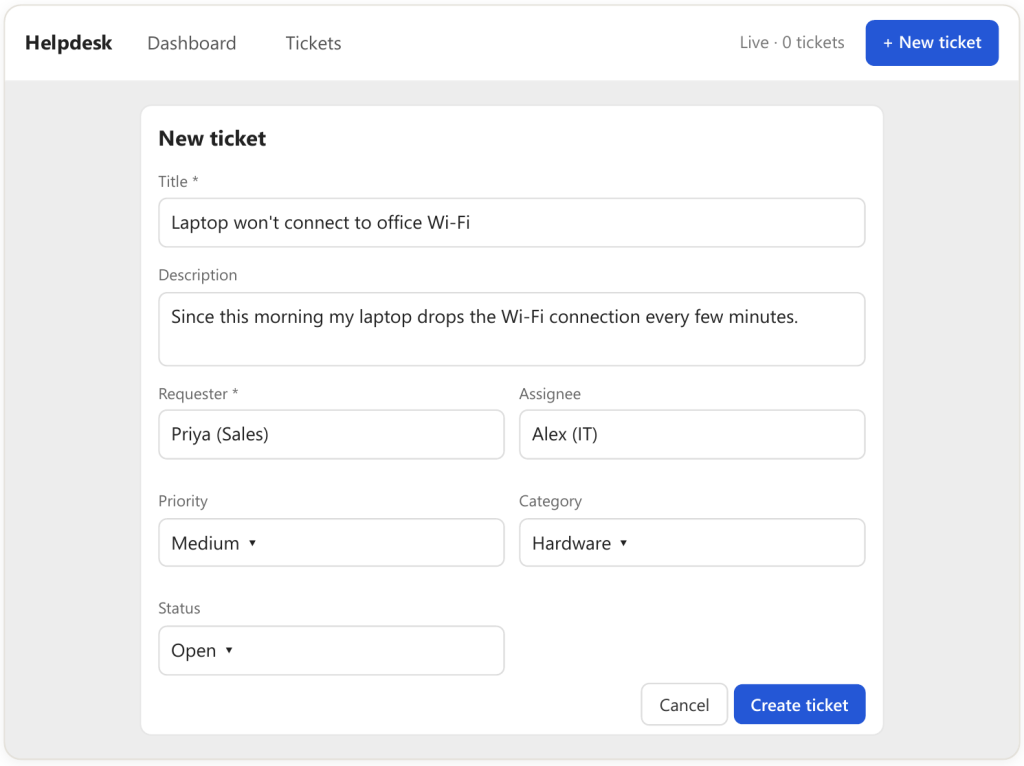
When Claude finishes, the app opens in a panel beside the chat. Create a test ticket with the + New ticket button. Fill in a title, a requester, and a priority so you can see each field work.
Next, open the ticket you just created. The detail view shows the description, a comment box, and editable status, priority, assignee, and category fields.
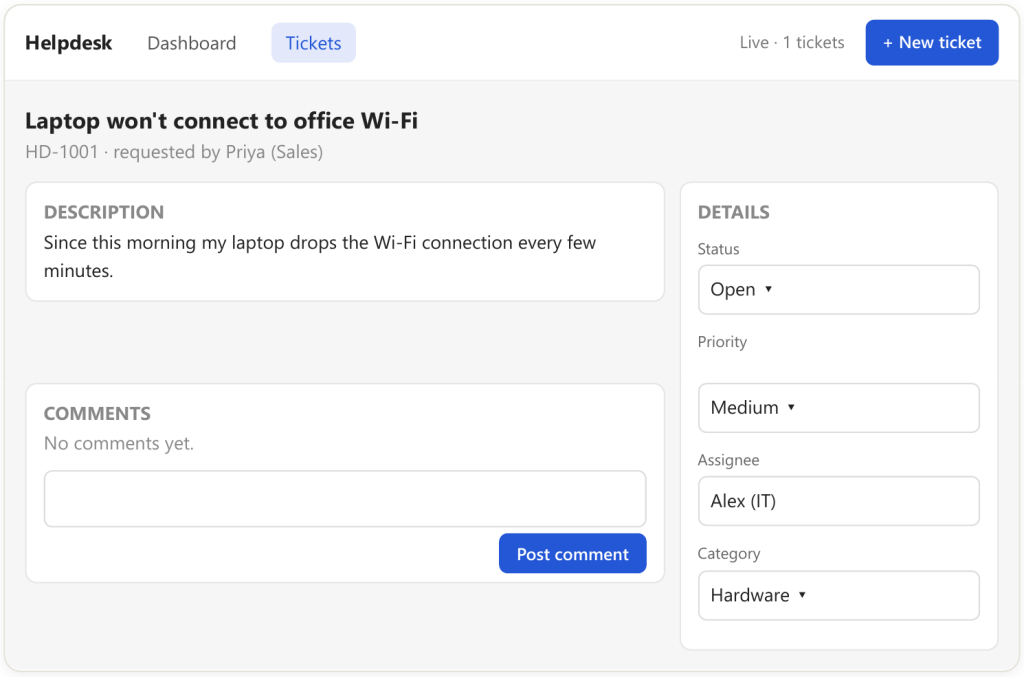
Now test the storage. Reload the page. If the ticket is still in the list, it is saved in the artifact’s shared database, and everyone you share the app with sees the same tickets.
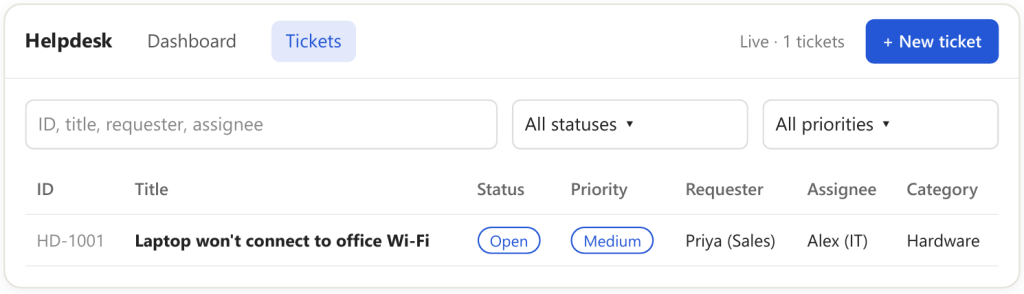
Open the Dashboard tab too. It shows ticket counts by status, which is the start of a helpdesk dashboard your team can grow over time.
If a view gets stuck, describe the problem to Claude in the chat and it will fix it. In our test, the Dashboard tab stayed on “Loading tickets…”.
Step 4: Change the app by asking
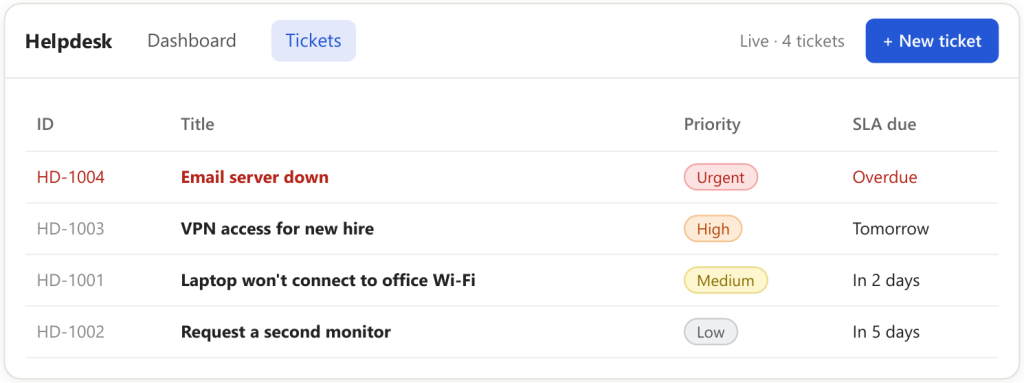
You do not edit code. Type what you want in the chat beside the app, and Claude updates it. This request adds color, an SLA due date, and overdue highlighting:
An SLA due date marks the deadline for resolving a ticket under your service level agreements. Other requests worth trying:
- “Add an assignee dropdown with these names: …”
- “Add fixed categories: Hardware, Software, Access, Network.”
- “Add sample tickets so I can demo it.”
- “Show tickets with no assignee at the top of the dashboard.”
Step 5: Share the app with your team
Click Share at the top right of the app panel. The app starts private, set to “Only you”.
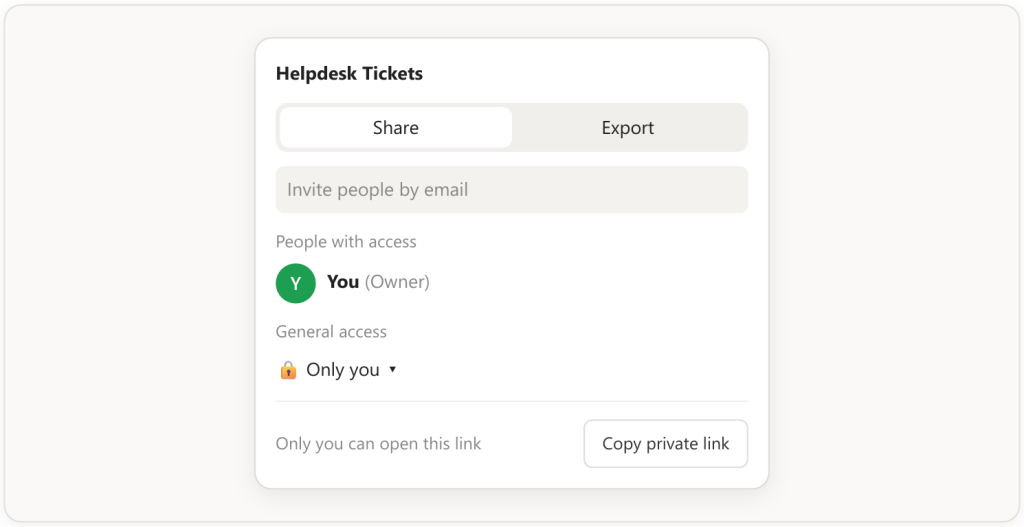
- Invite teammates by email, or change General access from “Only you” to your organization.
- Give agents who must create or edit tickets Contributor access or higher. Viewers can read tickets but cannot change them.
- Click Copy link and send it to your team.
What a Claude-built ticketing system cannot do
This tracker covers the basics of logging and assigning requests, but it stops short of a full helpdesk. Know these limits before your team depends on it. Some gaps, like a name dropdown or extra dashboard counts, you can patch by asking Claude. Others, like email intake and SLA timers, need a dedicated helpdesk.
| Limitation | What it means for your team |
|---|---|
| No email-to-ticket intake | Tickets are created inside the app only. Requests that arrive by email must be typed in by hand. |
| Basic permissions | Access is owner, contributor, or viewer for the whole app. You cannot hide some tickets from some agents. |
| Manual SLA dates | You enter each SLA due date yourself. The app can show overdue tickets, but it has no timers, no alerts before a deadline, and no escalation. |
| No notifications | Agents are not alerted when a ticket is created, assigned, or commented on. They have to check the app. |
| No attachments | Requesters cannot add screenshots or files to a ticket. |
| Typed assignee names | Assignees are free text, not linked to a user list. A typo can split one person's workload into two names. |
| Basic reporting | The dashboard shows counts. It does not report response time, resolution time, or backlog trends. |
| Everyone needs access | People who submit or view tickets must be able to open the shared app. Test this with a non-agent before you roll it out. |
| Not built for production scale | Treat it as a prototype. It has no service guarantees, so do not rely on it for high ticket volumes or critical support. |
| Needs a dedicated owner | Someone has to own the app. That person manages it, adds and tests each new feature through the chat, and fixes views that break. If that person leaves or gets busy, the tracker stalls. |
| Limited security controls | Access comes down to owner, contributor, and viewer settings. There is no field masking or formal audit log for ticket data. Tickets often hold employee details or passwords, so check how Anthropic stores and protects artifact data before you use the app for real requests. |
Some gaps you can ask Claude to patch in the chat, such as a name dropdown or more dashboard counts. Others, such as email intake and SLA timers, need a full helpdesk.
Compare these gaps with the ticketing system features a full helpdesk offers, such as email channels, automation, and reporting.
When to move to a helpdesk like Desk365
A Claude-built tracker fits a small internal team, a pilot, or a demo. Move to a helpdesk when requests start arriving by email, when deadlines start to matter, or when requesters need a place to follow their tickets. Those are the exact gaps in the table above.
Desk365 is a helpdesk built for Microsoft Teams. It turns customer emails into tickets and sends agent replies back by email. It sets SLAs by ticket type, priority, or customer segment, and it alerts agents before a deadline is missed. Automation rules route tickets and update fields when a ticket is created or changed. Desk365 also includes a customer portal, a knowledge base, and IT asset management. Users and agents can create, track, and reply to tickets without leaving Teams.
Security is another reason teams move to a helpdesk. Desk365 holds a SOC 2 Type 2 certification. It supports single sign-on through Microsoft Entra ID and multi-factor authentication, keeps a ticket activity log of what changed, who changed it, and when, and masks sensitive data such as credit card and social security numbers. A hosted helpdesk also removes the build-and-maintain work. Your admin configures it, and the vendor maintains the product.
Desk365’s Standard plan costs $12 per agent per month, billed annually. Pricing is per agent, so the number of people who submit tickets is unlimited. A free plan covers up to 50 tickets per month, and every paid plan starts with a 21-day trial that needs no credit card.
If your team works in Teams, read how a Microsoft Teams ticketing system fits that workflow and how email ticketing systems handle intake. If you would rather build a simple tracker another way, you can also use Excel, Google Forms, or SharePoint.
Want a ticketing system without the upkeep?
Frequently asked questions
No. You describe the app and any changes in plain English, and Claude builds and updates it.
Yes. Ask for shared storage in your prompt, then share the app with your team. Contributors can create and edit tickets, and viewers can only read them.
No. Tickets are created inside the app only. For email intake, use a dedicated helpdesk.
About one hour, including testing and a few changes. Claude itself takes 1 to 3 minutes to build the first version.
Not reliably. Anyone who submits or views tickets must be able to open the shared app. Test the link with a non-agent before you roll it out. If you need a portal for requesters, a dedicated helpdesk is the better fit.
No. Tickets are created inside the app only, so someone has to enter email requests by hand. For email intake, use a dedicated helpdesk.
No. The app sends no alerts for new, assigned, or updated tickets. Agents have to open the app and check.
Switch when ticket volume grows, when requests arrive by email, or when you need SLA timers, automation, or reporting on response and resolution times. Those needs go beyond what a Claude-built tracker can handle.